Transactions and bills
All pages in this section are in the Finance and billing («مالی و صورتحساب») menu (at the bottom of the sidebar).
Transactions
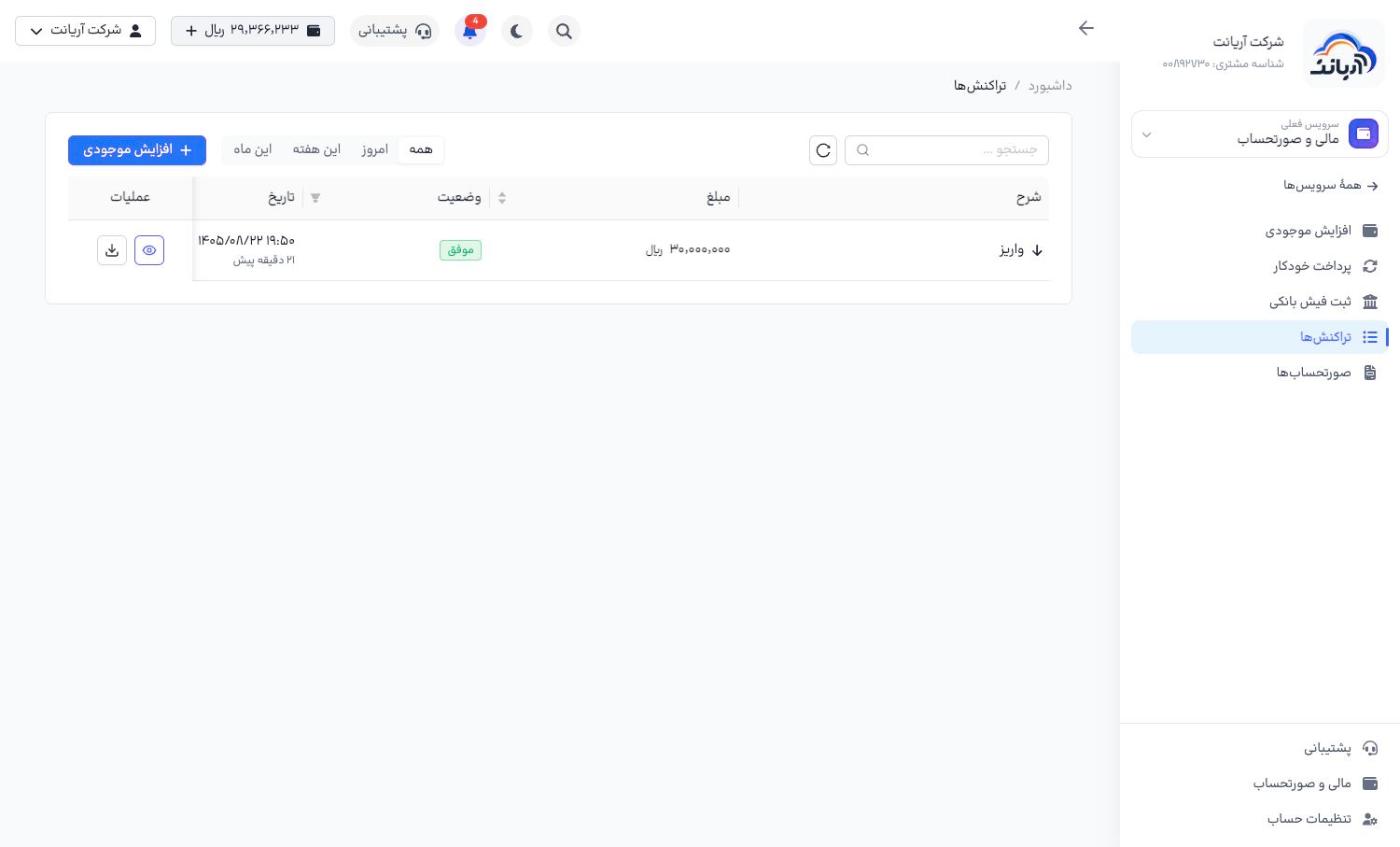
Transactions («تراکنشها») lists every deposit to and withdrawal from your wallet, with description, amount, status and date. Find a transaction with the All («همه»), Today («امروز»), This week («این هفته») and This month («این ماه») filters or the search box. The eye button shows the transaction's details and the download button downloads its receipt.
Bills
A bill is created every month that adds up all the costs of that month. At the top of the Bills («صورتحسابها») page is the consolidated usage report («گزارش تجمیعی مصارف»; choose the month from the list above it):
- Total usage for the period, amount invoiced and discount applied
- Credit sufficient until («اعتبار کافی تا»): roughly how many more days your balance will last, given your current balance and daily usage
- a chart of daily usage for the month
- Usage by product: each product's share (hosting, VPS, cloud and so on) of the cost
- Invoice payment status

Keep an eye on the Credit sufficient until figure. When it gets down to a few days, top up your account or turn on automatic payment so your services are not suspended.
At the bottom of the page is the invoice list, with the number, period, total amount and status of each invoice. The eye button (View details, «مشاهده جزئیات») opens the invoice.

Bill details
Each bill's page shows:
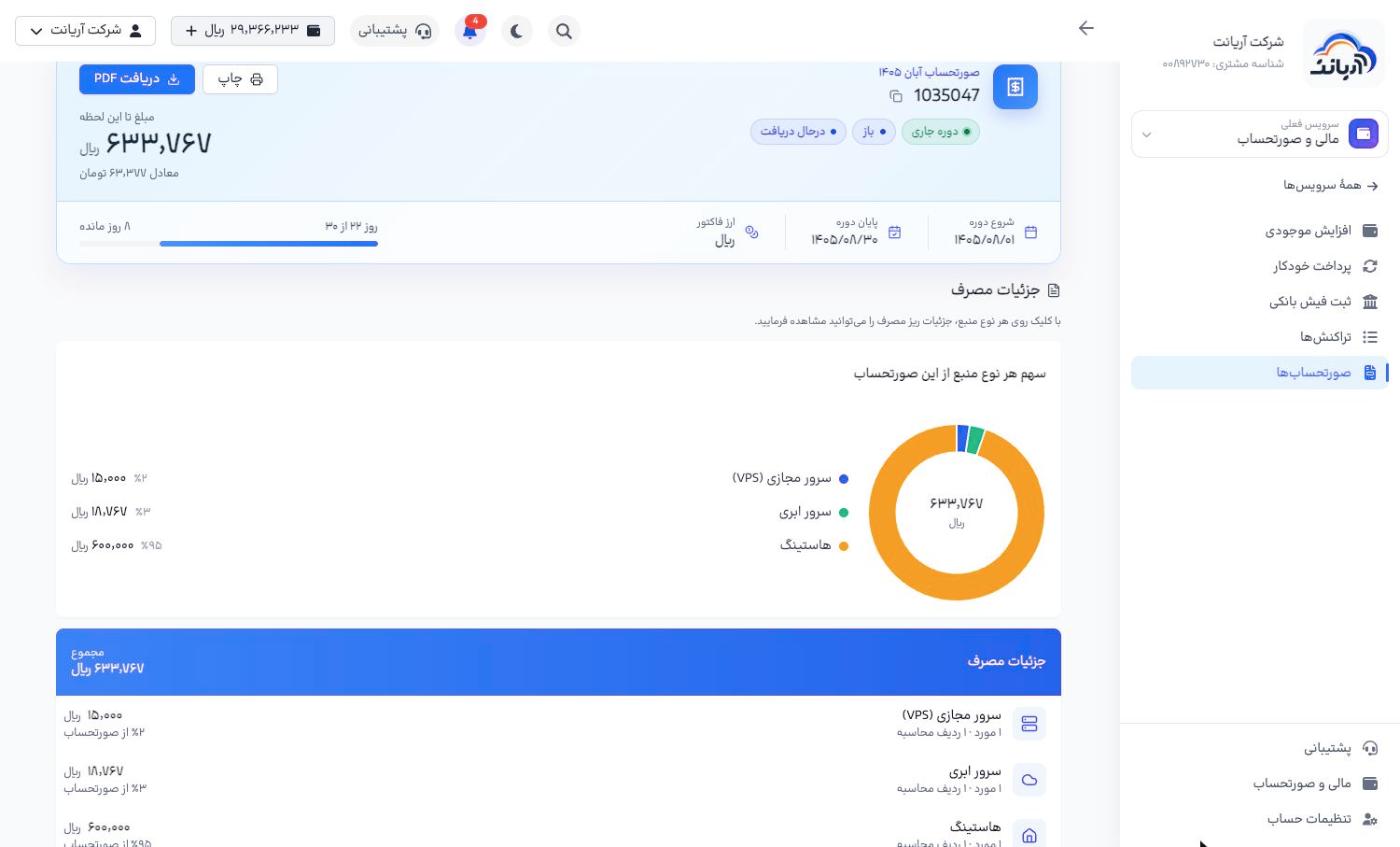
- the number, period (start and end), currency, status (Current period «دوره جاری», Open «باز», Collecting «درحال دریافت» and so on) and the days left in the period
- Amount so far («مبلغ تا این لحظه», with its equivalent in Tomans)
- a chart of each resource type's share of the bill
- Usage details: click a resource type to see its itemized usage
- Print («چاپ») and Download PDF («دریافت PDF») buttons
The current month's bill stays open until the end of the month, and its amount goes up with every hour of hourly-service usage. Costs are deducted from your wallet as they occur; the bill is a report of those deductions, not a separate debt.
Costs of one service
On each cloud server's page, the Costs («هزینهها») tab shows that server's hourly and monthly cost (Arianet Cloud). For hosting, Billing → View this service's costs («صورتحساب ← مشاهده هزینههای این سرویس») does the same.
Resource quota
Each account has a limit on the number of each type of resource (servers, IPs, volumes, firewalls, snapshots and so on). Account settings → Resource quota («تنظیمات حساب ← سهمیهٔ منابع») shows the limit and current usage of each resource. If a limit is not enough, submit a Request a quota increase («درخواست افزایش سهمیه»).

Check your quota before creating a large number of servers. If a quota is full, creating a new resource fails with an error. Quota increase requests are reviewed by support.