Identity verification
By law, services only stay active for accounts whose identity has been verified. Your verification status is shown at the top of your profile with the label Identity verified («هویت تأیید شده») or Identity not verified («هویت تأیید نشده»).
- You can create only one server.
- After buying your first service you receive an SMS reminder and have 24 hours. After that, your services are turned off and locked until verification is complete, and they are released automatically once you are verified.
- Services are still charged during this time.
Verification steps
- Click Verify identity («احراز هویت»), either from the message To keep using the service, verify your identity («برای ادامهٔ استفاده، هویت خود را احراز کنید», shown after a purchase) or from the Identity verification («تایید هویت») page.
- Have these ready:
- national ID number (کد ملی)
- date of birth
- a mobile number that is registered under that same national ID
- Click Start verification («شروع احراز هویت»). You are taken to the secure verification page.
- Complete the steps. When you finish, you return to the panel and see the result. If it failed, click Try again («تلاش دوباره»).

- If the account's mobile number is registered to someone else, verification fails; to change the number, open a ticket (Identity verification department, «احراز هویت»).
- The verification page link only works for you; it will not work for anyone else.
- I'll do it later («بعداً انجام میدهم») lets you skip for now, but the limits above still apply.
Legal details and official invoices
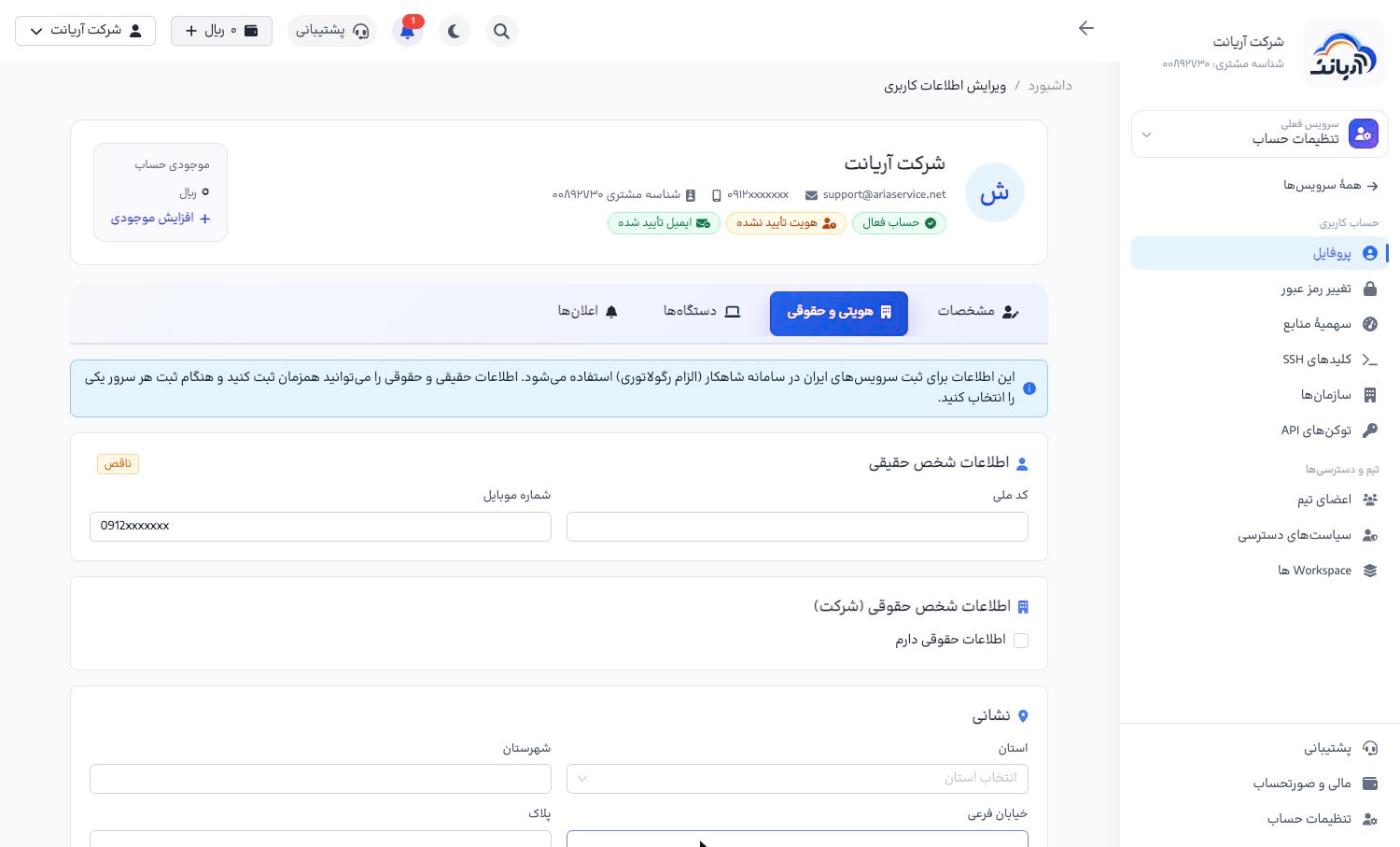
To buy in a company's name, open the Identity and legal («هویتی و حقوقی») tab in your profile, tick I have legal (company) details («اطلاعات حقوقی دارم») and enter the company's details and address. See the full guide.
Registering in the Shahkar system
For servers with an Iranian IP, the IP must be registered in the Shahkar system under the owner's name. After you create such a server, a Register in Shahkar («ثبت در شاهکار») button appears:
- Choose the person type: Individual («شخص حقیقی») or Legal entity («شخص حقوقی»). The details are read from the Identity and legal tab of your profile.
- Click Send request and get SMS code («ارسال درخواست و دریافت کد پیامکی»).
- Enter the SMS code (two codes are sent for a legal entity) and click Confirm and complete registration («تأیید و تکمیل ثبت»).
Complete the Identity and legal tab before registering in Shahkar; otherwise the registration request is not sent.