Top-up and wallet
The cost of every service is deducted from your wallet balance. Hourly services (such as VPS and cloud) are charged every hour, and monthly services (such as dedicated servers) are charged when ordered and when renewed.
If your balance runs out, hourly services are suspended and, after a while, deleted. Always keep a little more than the next few days' usage in your balance, or turn on automatic payment.
All pages in this section are in the Finance and billing («مالی و صورتحساب») menu (at the bottom of the sidebar). Your current balance is always shown in the panel's top bar; click it to go to the top-up page.
Top up through a bank gateway
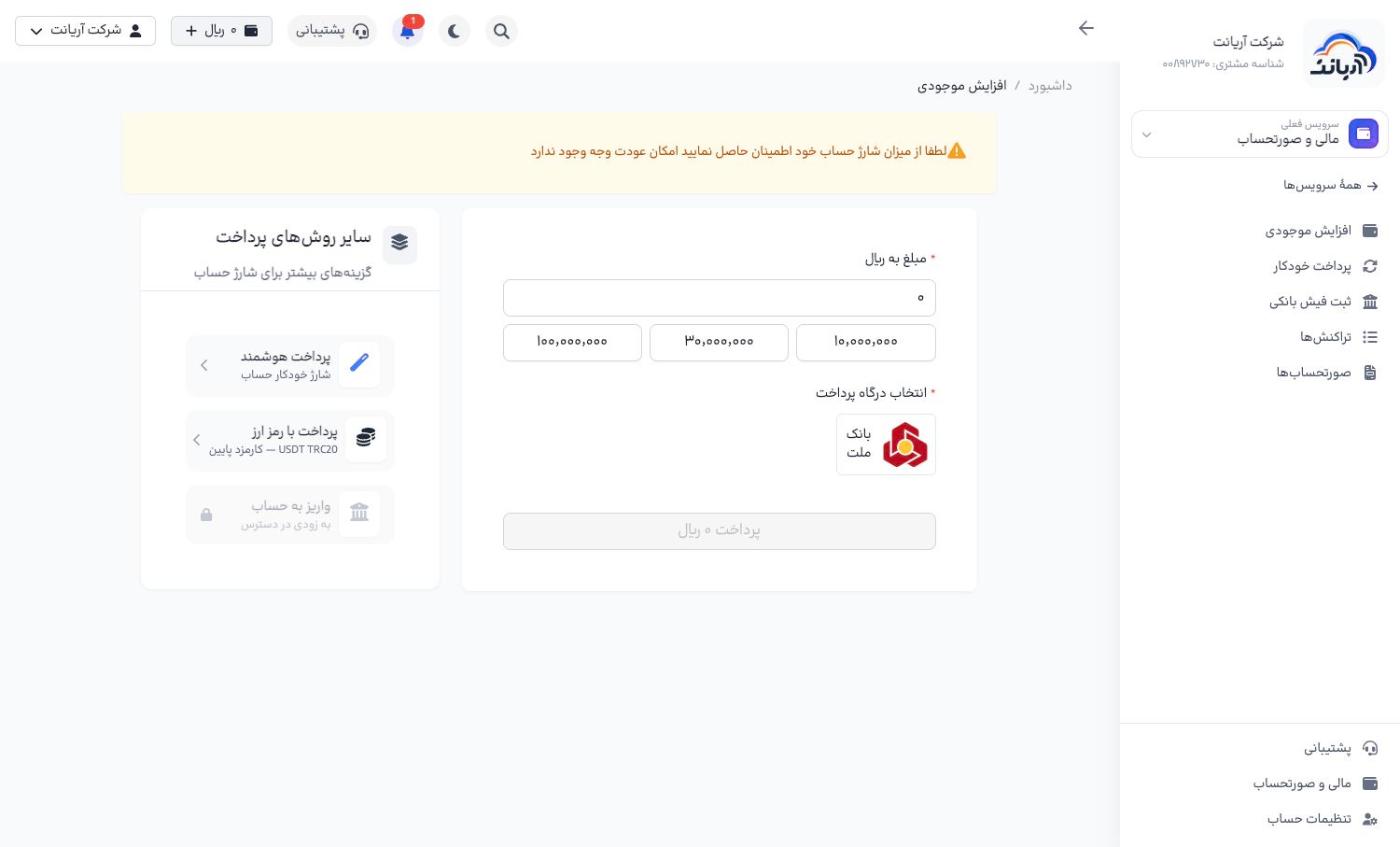
- In Finance and billing, open Top up («افزایش موجودی») (or click Add credit, «افزایش اعتبار», on the dashboard).
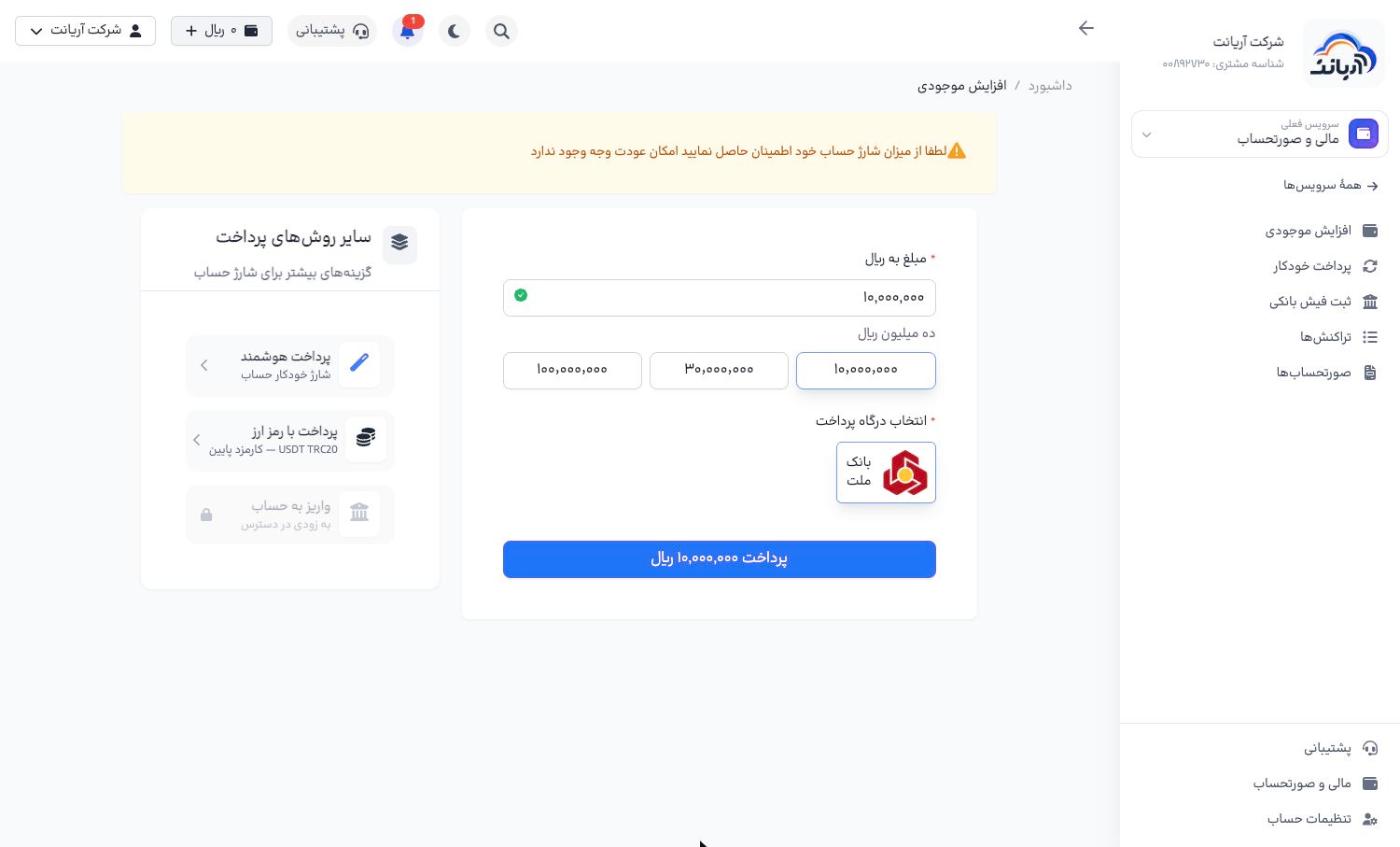
- In Amount in Rials («مبلغ به ریال»), enter an amount or click one of the preset amounts (10, 30 or 100 million Rials). The amount is written out in words below the field so you can check it.
- In Choose payment gateway («انتخاب درگاه پرداخت»), choose a bank gateway.
- Click the Pay … Rials («پرداخت … ریال») button. You are taken to the bank's page; pay with your bank card.
- After a successful payment you return to the panel and your balance increases immediately.
Top-ups are non-refundable. Make sure of the amount before you pay.
- If the bank page does not open, turn off your VPN; Iranian bank gateways only open from an Iranian IP.
- If money was taken from your account but your panel balance did not increase, the bank returns it within 72 hours. If it is not returned, open a ticket with the bank's tracking number.
Other payment methods
On the left of the top-up page, the Other payment methods («سایر روشهای پرداخت») box offers:
- Smart payment («پرداخت هوشمند»): automatic top-up of your account (below)
- Pay with cryptocurrency («پرداخت با رمز ارز»): USDT on the TRC20 network, with low fees
- Bank deposit («واریز به حساب»): coming soon
Pay with cryptocurrency (USDT TRC20)
- In Other payment methods, click Pay with cryptocurrency («پرداخت با رمز ارز»).
- Enter an amount in dollars or click one of the preset amounts (5 to 100 dollars). The minimum is 1 dollar.
- Click Get payment address («دریافت آدرس پرداخت»). The wallet address, a QR code and the payment deadline are shown.
- Send exactly that amount of USDT to the address before the deadline. Once the network confirms it, a Payment successful («پرداخت موفق») message is shown and your balance is topped up.
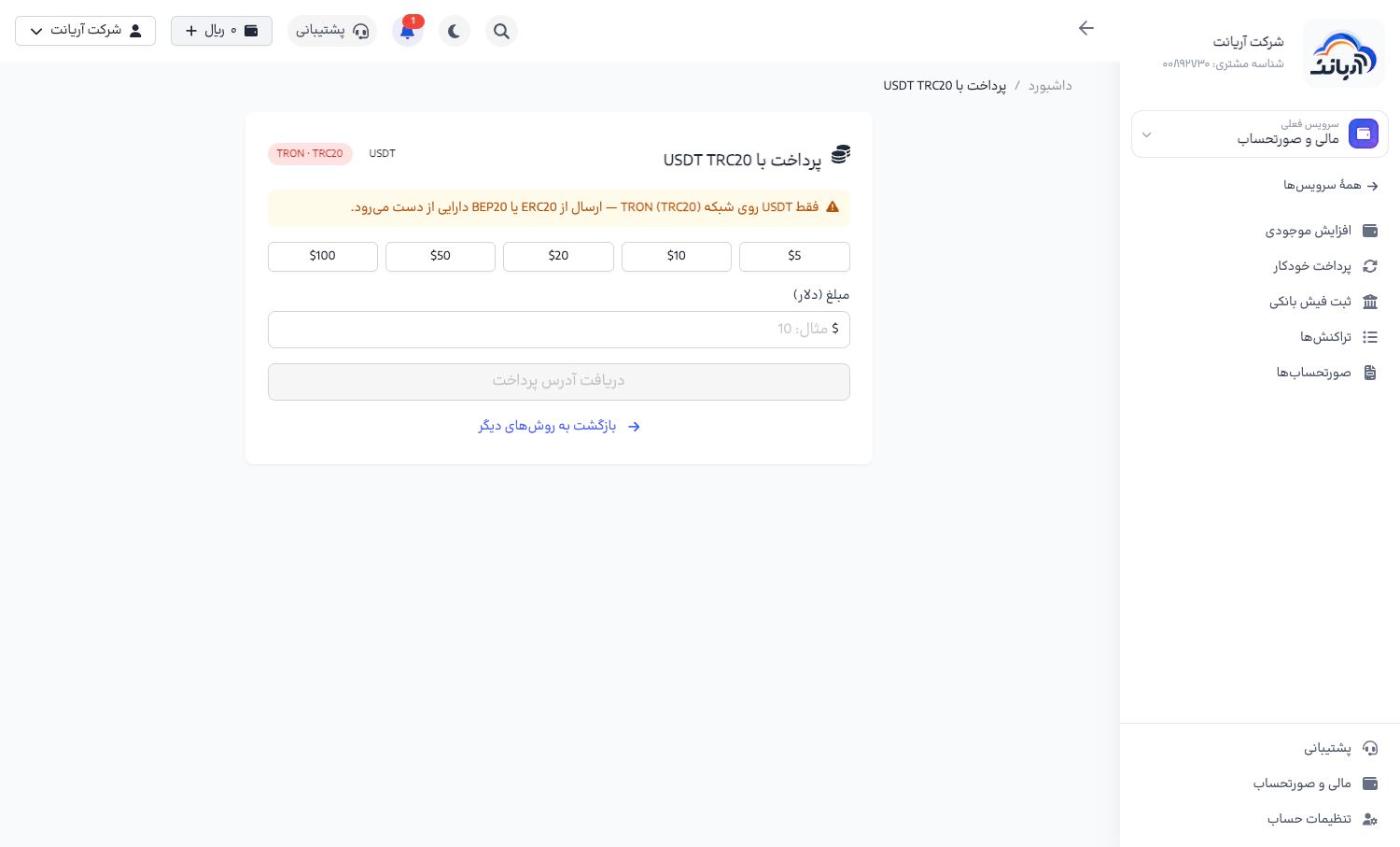
Only send USDT on the TRON (TRC20) network. Sending from the ERC20 or BEP20 network, or sending any other cryptocurrency, will lose the funds and cannot be reversed.
Submit a bank receipt (card-to-card transfer or deposit)
If you paid directly into the company's bank account:
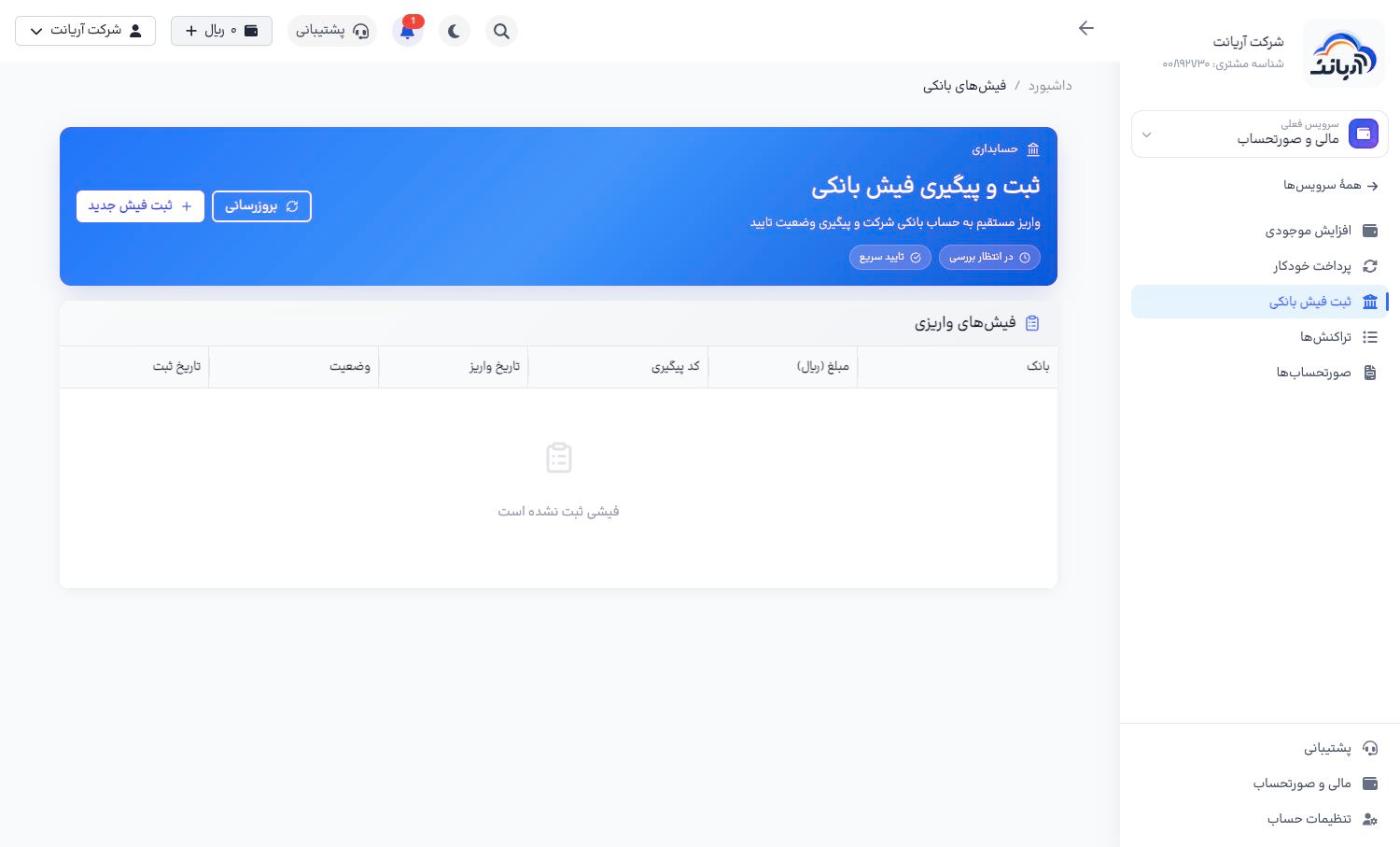
- In Finance and billing, open Submit bank receipt («ثبت فیش بانکی») and click New receipt («ثبت فیش جدید»).
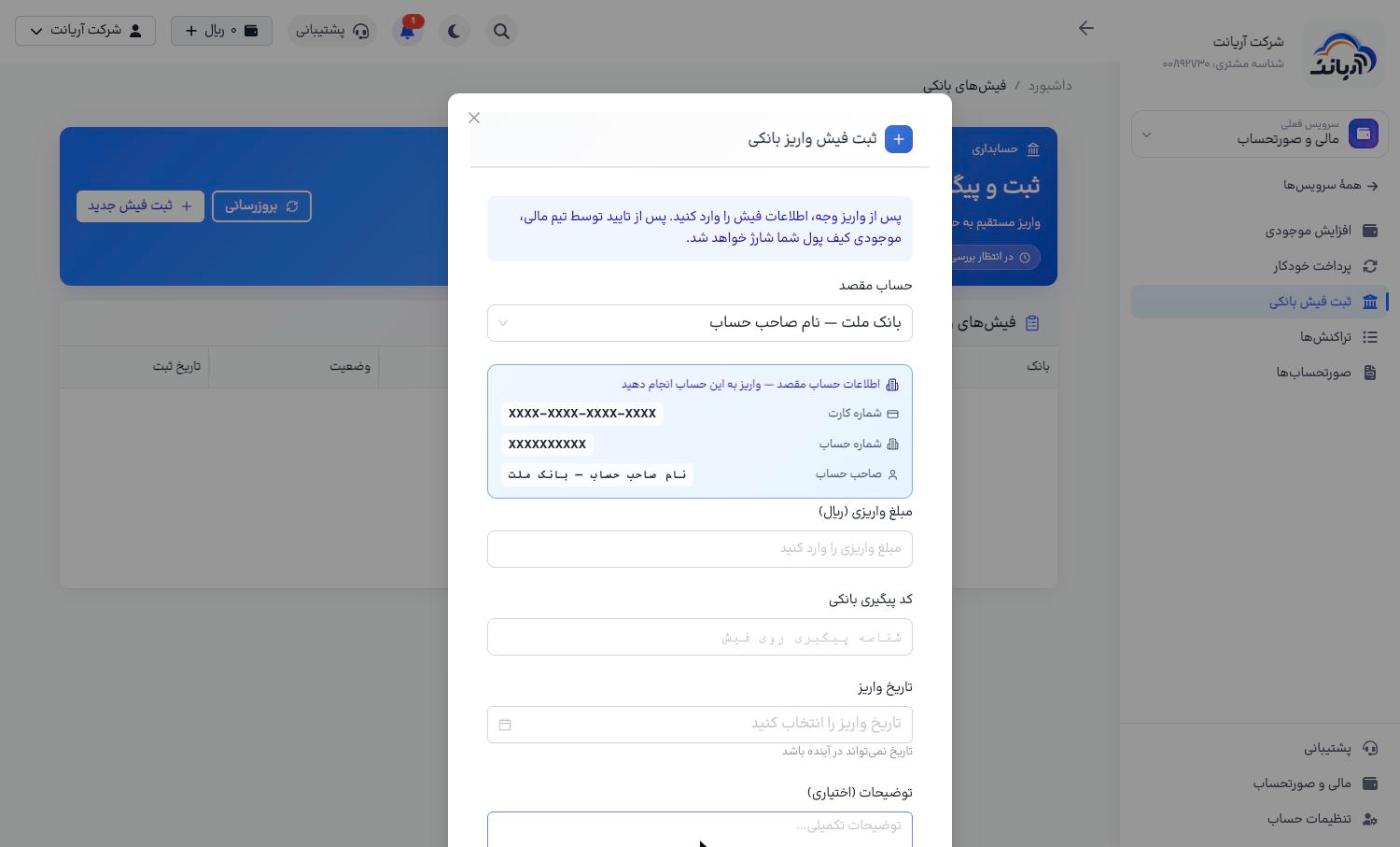
- In Destination account («حساب مقصد»), choose the account you paid into. Its card number, account number and account holder's name are shown.
- Enter the Deposit amount (Rials) («مبلغ واریزی (ریال)»), the Bank tracking code («کد پیگیری بانکی», the tracking ID on the receipt) and the Deposit date («تاریخ واریز»). Add a Description («توضیحات») if needed and submit the receipt.
- The receipt appears in the Deposit receipts («فیشهای واریزی») table with the status Pending review («در انتظار بررسی»). Once the finance team approves it, the status becomes Approved («تایید شده») and your wallet is topped up.
- Pay first, then submit the receipt. Only pay into the accounts listed under Destination account in the panel.
- Enter the tracking code exactly as it appears on the bank receipt; a receipt with a wrong tracking code is rejected.
- The deposit date cannot be in the future.
- Receipt top-ups are approved manually and may take some time; for an instant top-up, use the bank gateway.
Automatic payment (smart payment)
With automatic payment, whenever your balance drops below a set level, a fixed amount is automatically withdrawn from your bank account and added to your wallet. This keeps your services from being suspended because your balance ran out.
- In Finance and billing, open Automatic payment («پرداخت خودکار»). The list of Active agreements («قراردادهای فعال») shows the bank, minimum withdrawal, maximum amount, daily limit, status and expiry date.
- Click Create new agreement («ایجاد قرارداد جدید»).
- Fill in the Automatic top-up («شارژ خودکار») form:
- Choose bank («انتخاب بانک»): the bank your account is with.
- Withdrawal threshold (Rials) («حد آستانه برداشت (ریال)»): if your balance falls below this amount, a withdrawal is made.
- Maximum withdrawals per day («بیشترین تعداد برداشت در هر روز»)
- Agreement period («بازه زمانی قرارداد برداشت»): how long the agreement is valid (for example 1 year).
- Amount withdrawn per transaction (Rials) («مبلغ برداشتی در هر تراکنش (ریال)»)
- Click Register automatic payment agreement («ثبت قرارداد پرداخت خودکار») and confirm the agreement on the bank's page.


Set the amount of each withdrawal to at least one day's usage of your services, so that repeated withdrawals are not needed. The bank also limits the daily withdrawal cap and the agreement period.
Managing wallets
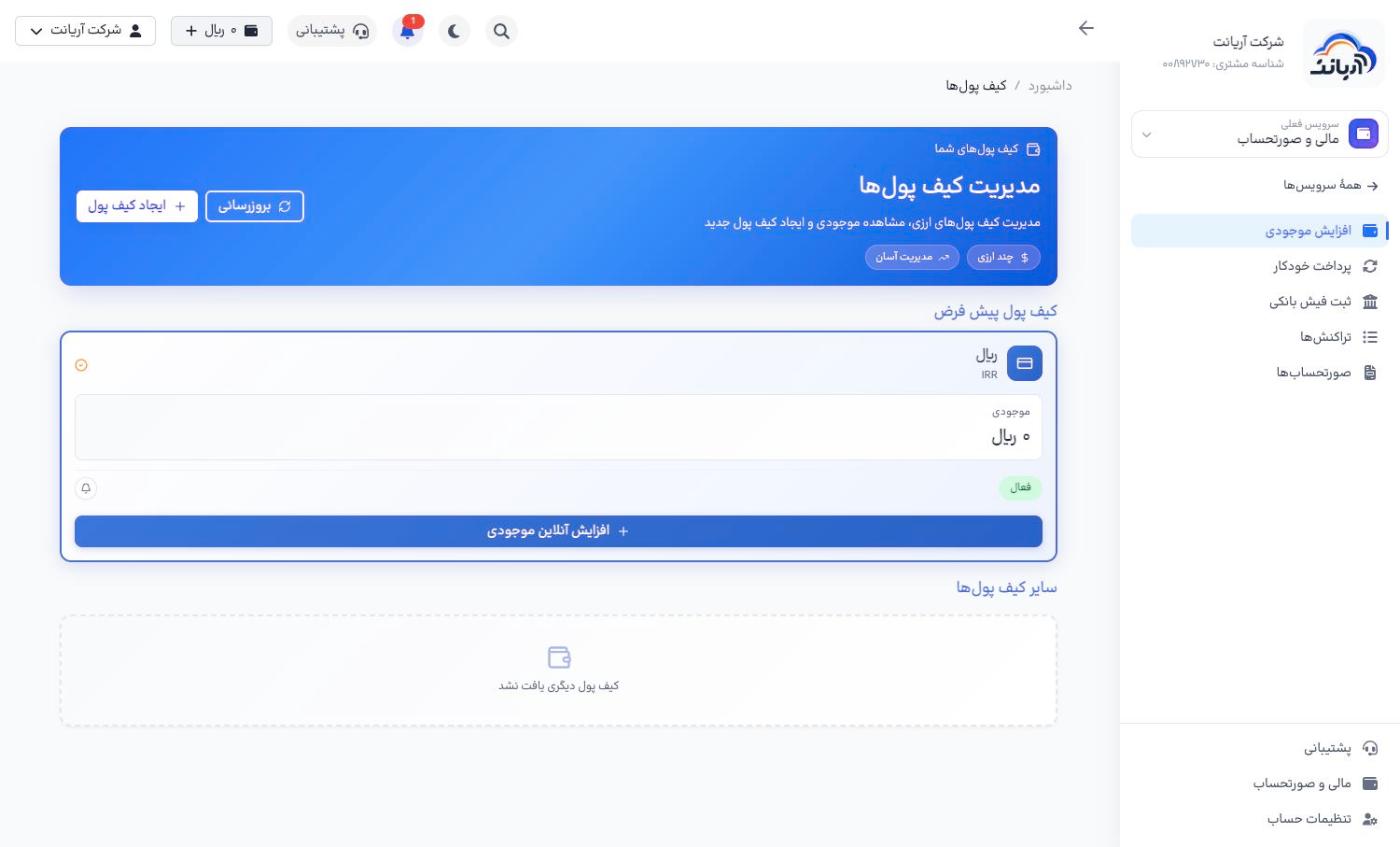
In Finance and billing → Top up, follow the wallets link to the Manage wallets («مدیریت کیف پولها») page:
- Default wallet («کیف پول پیش فرض»): the wallet service costs are deducted from, with its balance and status.
- Notification bell: turn it on to be notified when your balance is low. Be sure to turn this on.
- Online top-up («افزایش آنلاین موجودی»): top up this wallet directly.
- Create wallet («ایجاد کیف پول»): create a wallet in another currency. Use Set as default («تنظیم پیشفرض») to change the default wallet.