Sign up and sign in
Signing up and signing in use the same page at Arianet. If you sign in with a number that has no account yet, a new account is created automatically.
Step 1: mobile number or email
Go to panel.ariaservice.net. On the Sign in | Sign up («ورود | ثبتنام») page, enter your mobile number or email and click Continue («ادامه»).
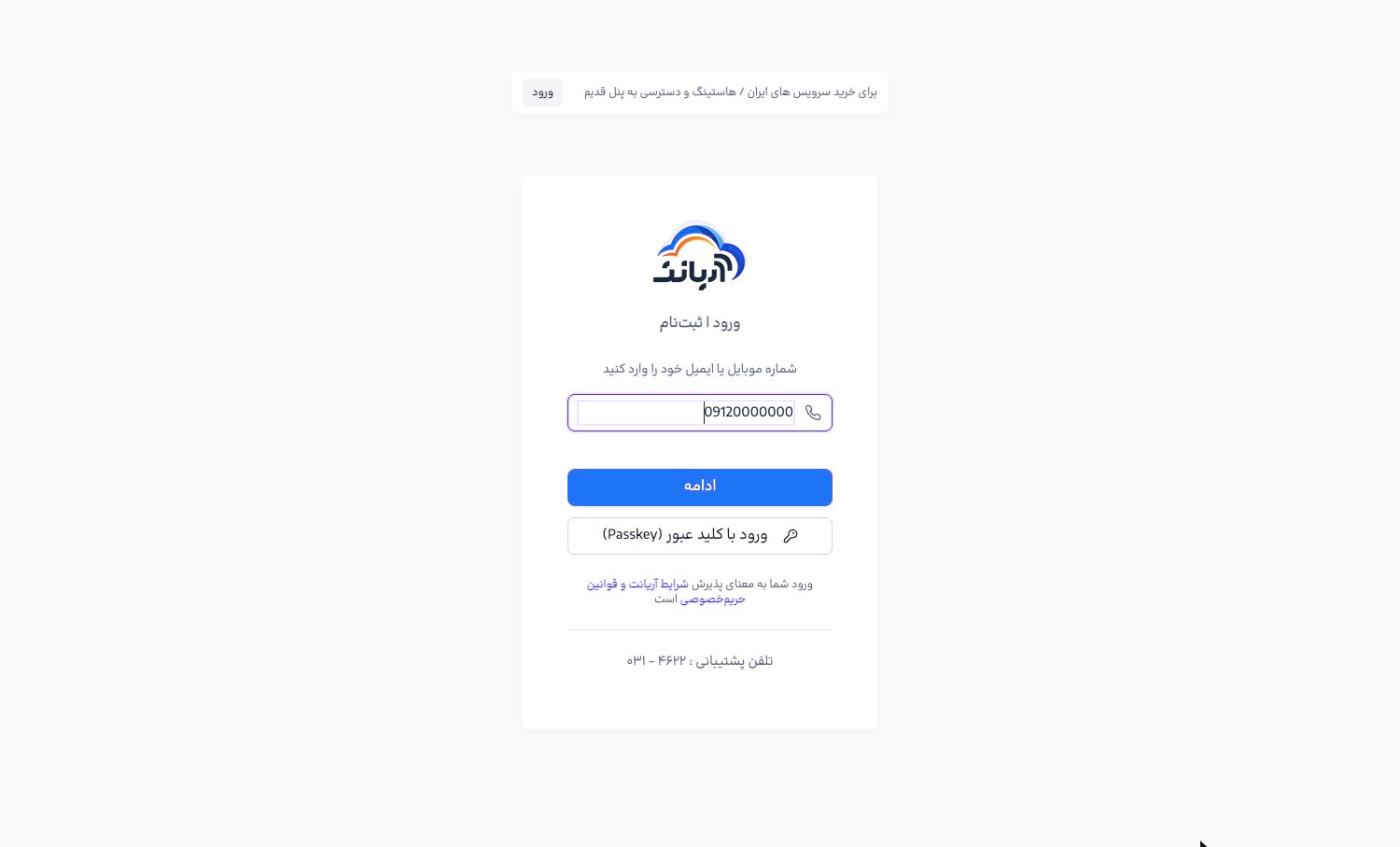
- By signing in you accept Arianet's terms and privacy policy.
- At the top of the page there is also a Sign in («ورود») link to the old panel, for buying Iran services and legacy hosting; all new services are in this panel.
Step 2: password or SMS code
- If you have set a password for your account, the Sign in to your account («ورود به حساب کاربری») page opens. Enter your password and click Sign in («ورود»).
- If you have no password (or the account is new), a verification code is sent to your mobile by SMS. Enter the code. If the SMS does not arrive, click Resend code («ارسال مجدد کد»), or correct the number with Change mobile number («تغییر شماره موبایل»).
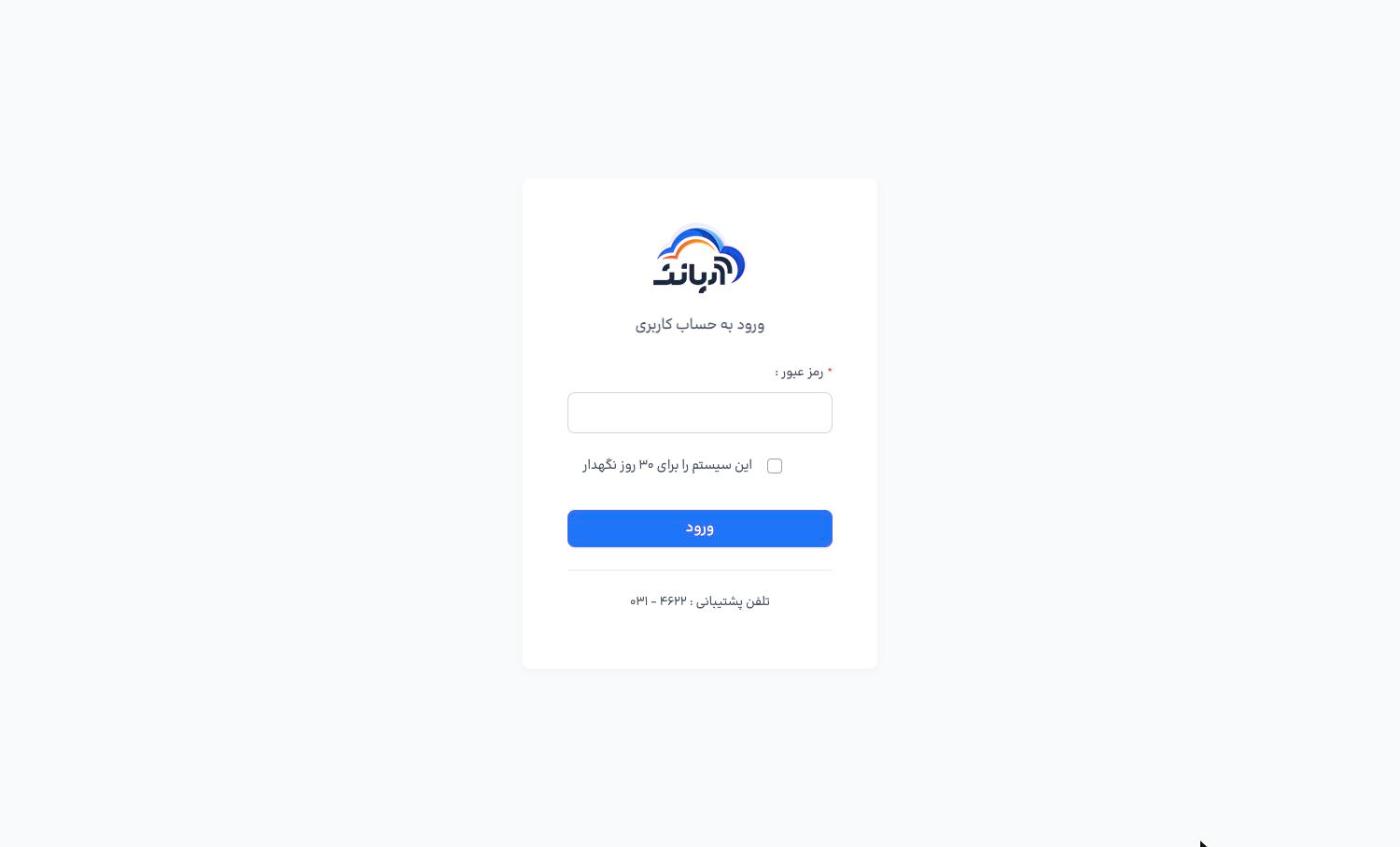
If you tick Keep this system signed in for 30 days («این سیستم را برای ۳۰ روز نگهدار»), this browser will not ask for a code or password again for 30 days. You can see and remove remembered devices in Profile → Devices.
Only turn this option on for a personal device, never on a shared or public computer.
Step 3: complete your profile (first time only)
After your first sign-in, the Complete your user profile («تکمیل پروفایل کاربری») form opens. Enter your first name, last name, email and a password, then click Save and continue («ثبت اطلاعات و ادامه»). Until this form is complete, only the ticket pages are available.
Sign in with a passkey or authenticator app
- If you have registered a passkey, click Sign in with a passkey («ورود با کلید عبور (Passkey)») on the first page to sign in with your fingerprint, face recognition or device lock.
- If you have enabled an authenticator app, after step 2 you are asked for the app's 6-digit code (or one of your recovery codes).
If SMS messages are not reaching you because of a disruption, you can still sign in to the panel with a passkey or an authenticator app. We recommend enabling at least one of them.
Forgotten password
- If you are still signed in (for example on a remembered device), open Change password («تغییر رمز عبور») from the user menu and click Forgot your current password? («رمز عبور فعلی را فراموش کردهاید؟»); you set a new password with an SMS code.
- If you are not signed in, sign in with a passkey, or call the support phone number shown at the bottom of the sign-in page.