Support tickets
All support pages are in the Support («پشتیبانی») menu (at the bottom of the sidebar) or behind the Support button in the panel's top bar.
My tickets
Support → My tickets («پشتیبانی ← تیکتهای من») shows all your tickets with their number, subject, status, department and creation time. Find a ticket with the Search («جستجو») box and the Status («وضعیت») filter.
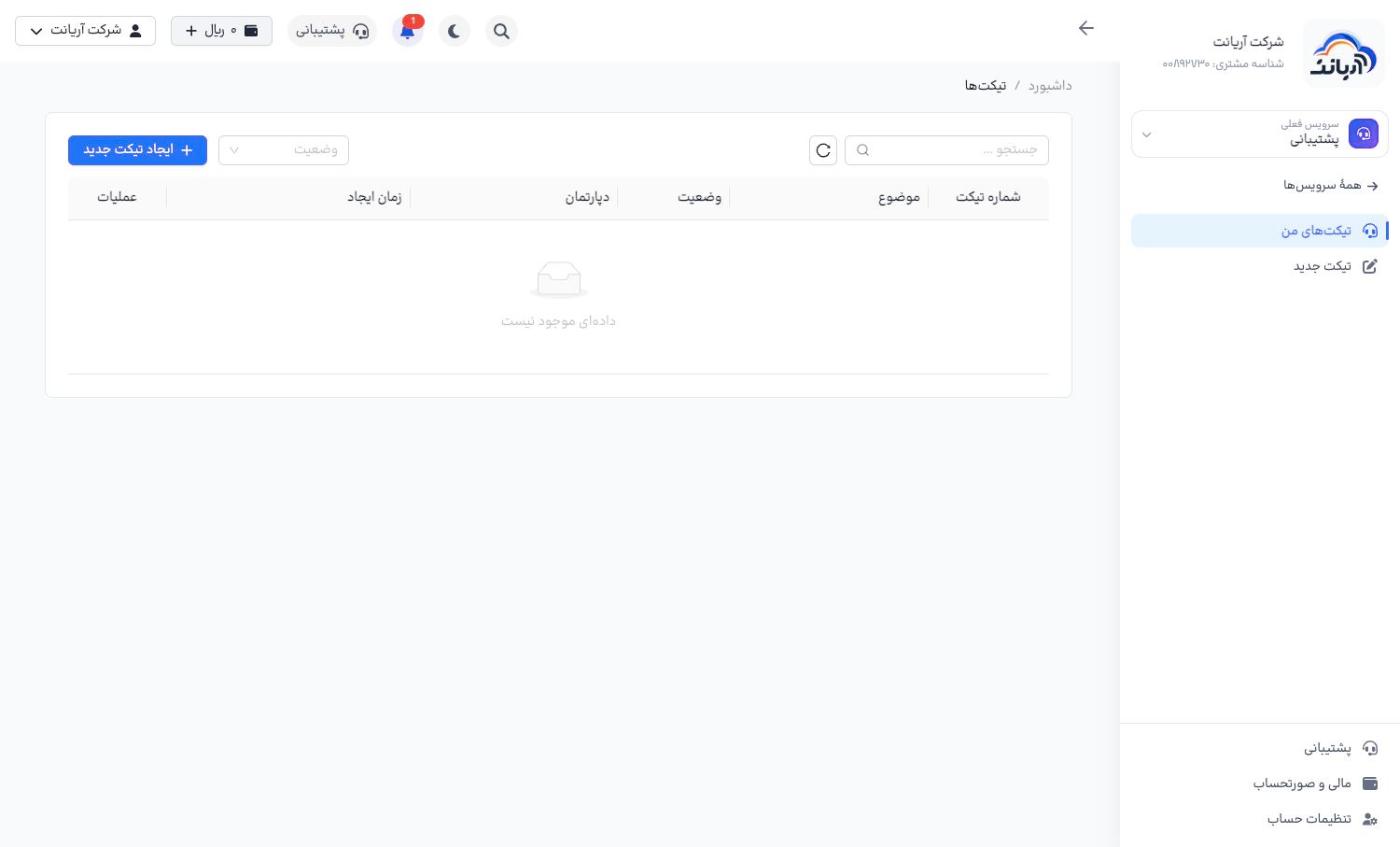
Ticket statuses:
| Status | Meaning |
|---|---|
| Open («باز») | submitted and waiting to be reviewed |
| Under review («در حال بررسی») | an agent is working on it |
| Customer action required («نیازمند اقدام مشتری») | support is waiting for a reply or an action from you |
| Answered («پاسخ داده شده») | support has replied |
| Closed («بسته شده») | the ticket is finished |
Opening a new ticket
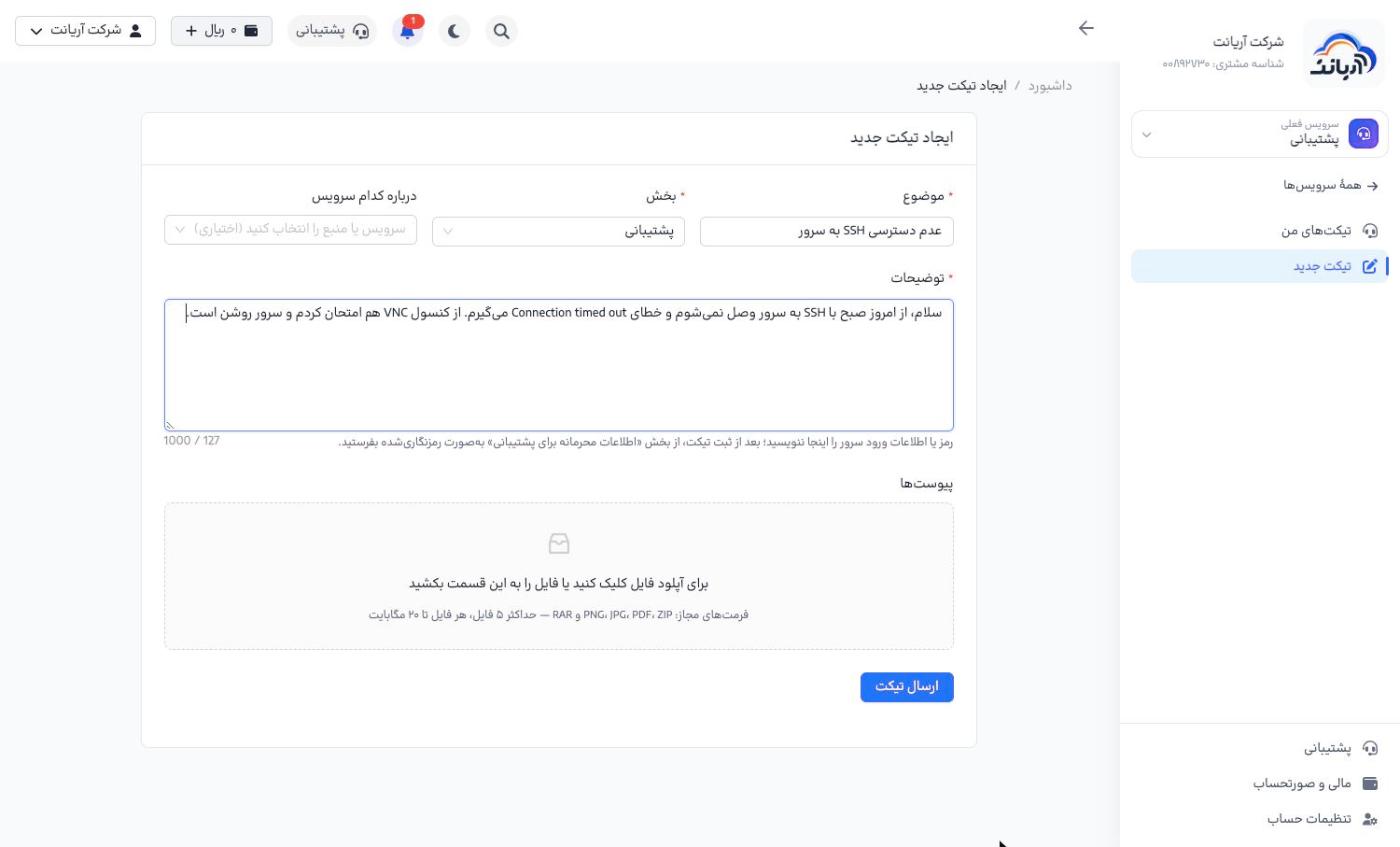
- Click Create new ticket («ایجاد تیکت جدید») (or Support → New ticket, «پشتیبانی ← تیکت جدید»).
- Subject («موضوع»): the problem in one sentence (for example "No SSH access to the server").
- Department («بخش»): choose the relevant department:
- Support («پشتیبانی»): technical problems with services
- Sales («فروش»): pre-sales questions, prices and plans
- Identity verification («احراز هویت»): verification problems, changing your mobile number
- Management («مدیریت»): complaints and suggestions
- Marketing («بازاریابی»): partnerships and advertising
- Which service is this about («درباره کدام سرویس», optional): choose the service with the problem so the agent can access it directly.
- Description («توضیحات»): describe the problem fully (at most 1,000 characters).
- Attachments («پیوستها»): add screenshots or files if needed.
- Click Send ticket («ارسال تیکت»).
You get a faster answer if you include:
- what you did and what you expected
- exactly what error you saw (the error text or a screenshot)
- when the problem started
- what you have already tried (for example "I also tried from the VNC console")
Allowed formats: PNG, JPG, PDF, ZIP and RAR. At most 5 files, each up to 20 MB.
Do not write passwords or server login details in the ticket text. After submitting the ticket, use the confidential information for support section on that ticket's page.
Each service's page also has a Support ticket («تیکت پشتیبانی») button that fills in the form with that service. This is the faster way.
Following up and replying to a ticket
When you open a ticket you see its number, subject, department and status, and the conversation with support. On this page you can:
- write a reply in the box at the bottom, attach files and click Send reply («ارسال پاسخ»)
- rate each support reply (Submit rating, «ثبت امتیاز»)
- give or withdraw support's permission to access the server or hosting (Save permissions, «ذخیرهی اجازهها»)
- click Close ticket («بستن تیکت») once the problem is solved
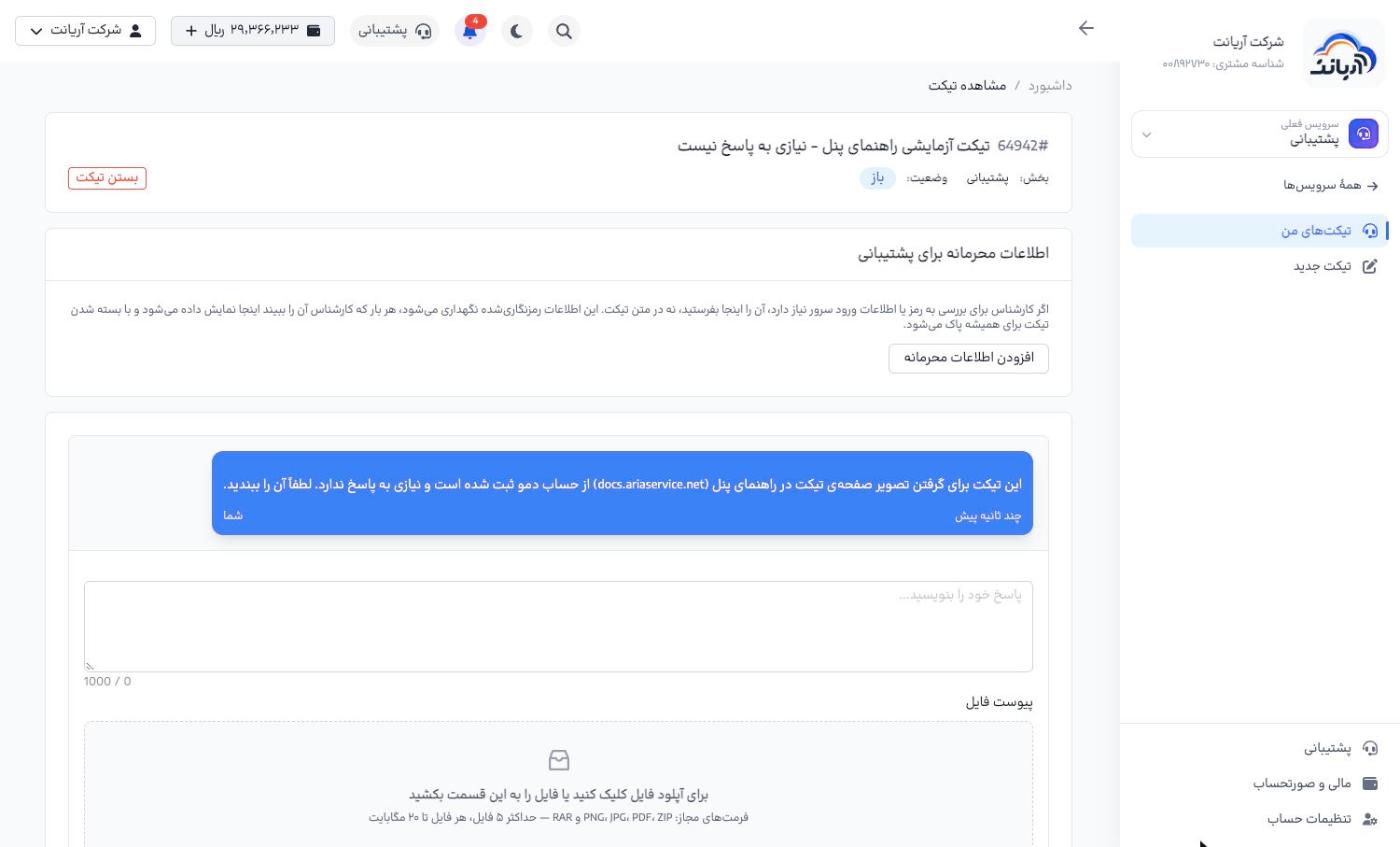
Confidential information for support
If the agent needs a password or server login details to investigate, do not write them in the ticket text:
- On the ticket page, click Add confidential information («افزودن اطلاعات محرمانه»).
- Enter a Title («عنوان», for example "Server SSH" or "Panel login"), the address or IP, port, username, password and, if needed, a note.
- Click Save encrypted («ثبت رمزنگاریشده»).
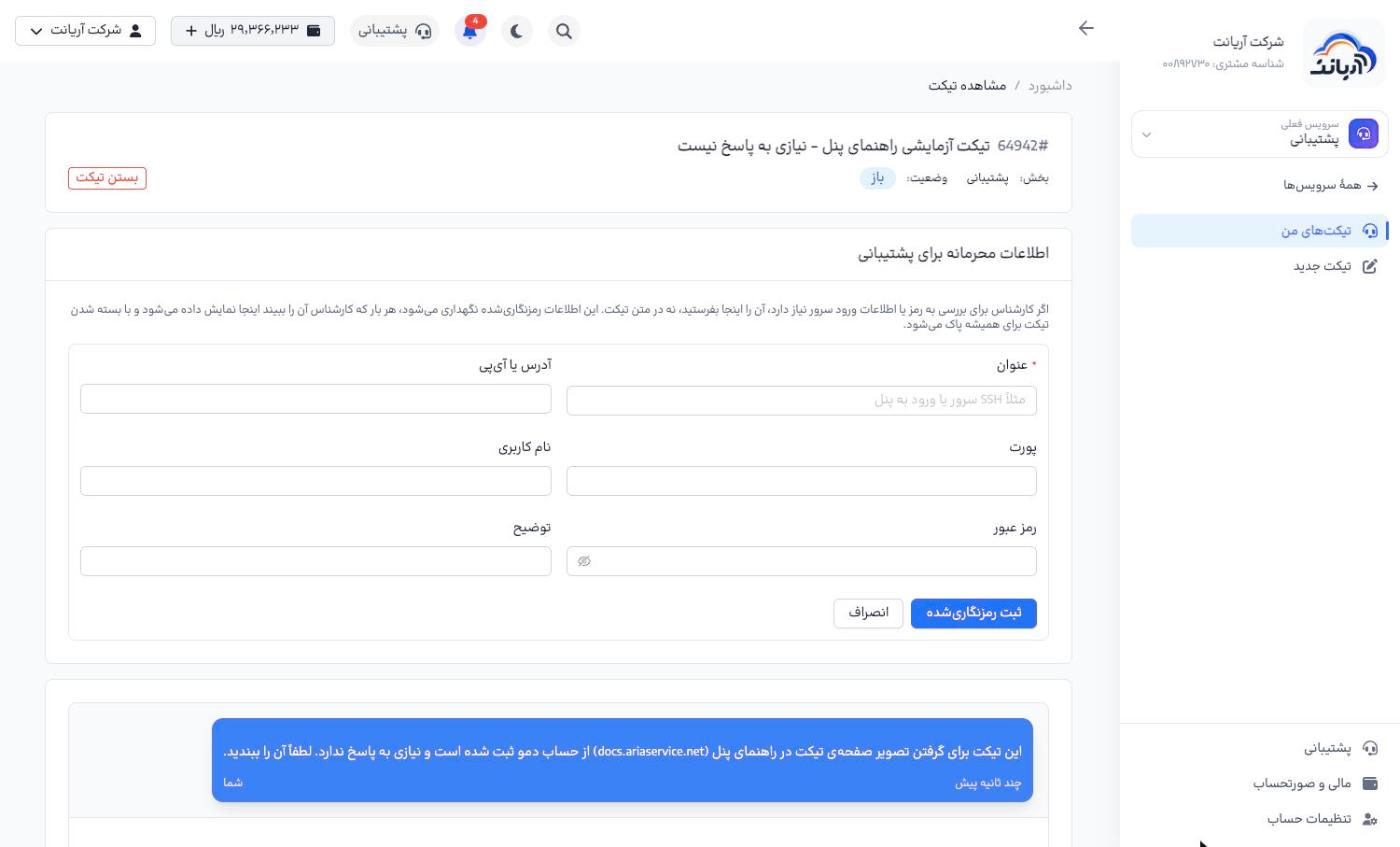
This information is stored encrypted. Each time an agent views it, you are shown this on the same page, and it is permanently deleted when the ticket is closed. Once the problem is solved, change the passwords you sent.
Closing a ticket
When the problem is solved, click Close ticket («بستن تیکت»), then click Close ticket again in the confirmation window.
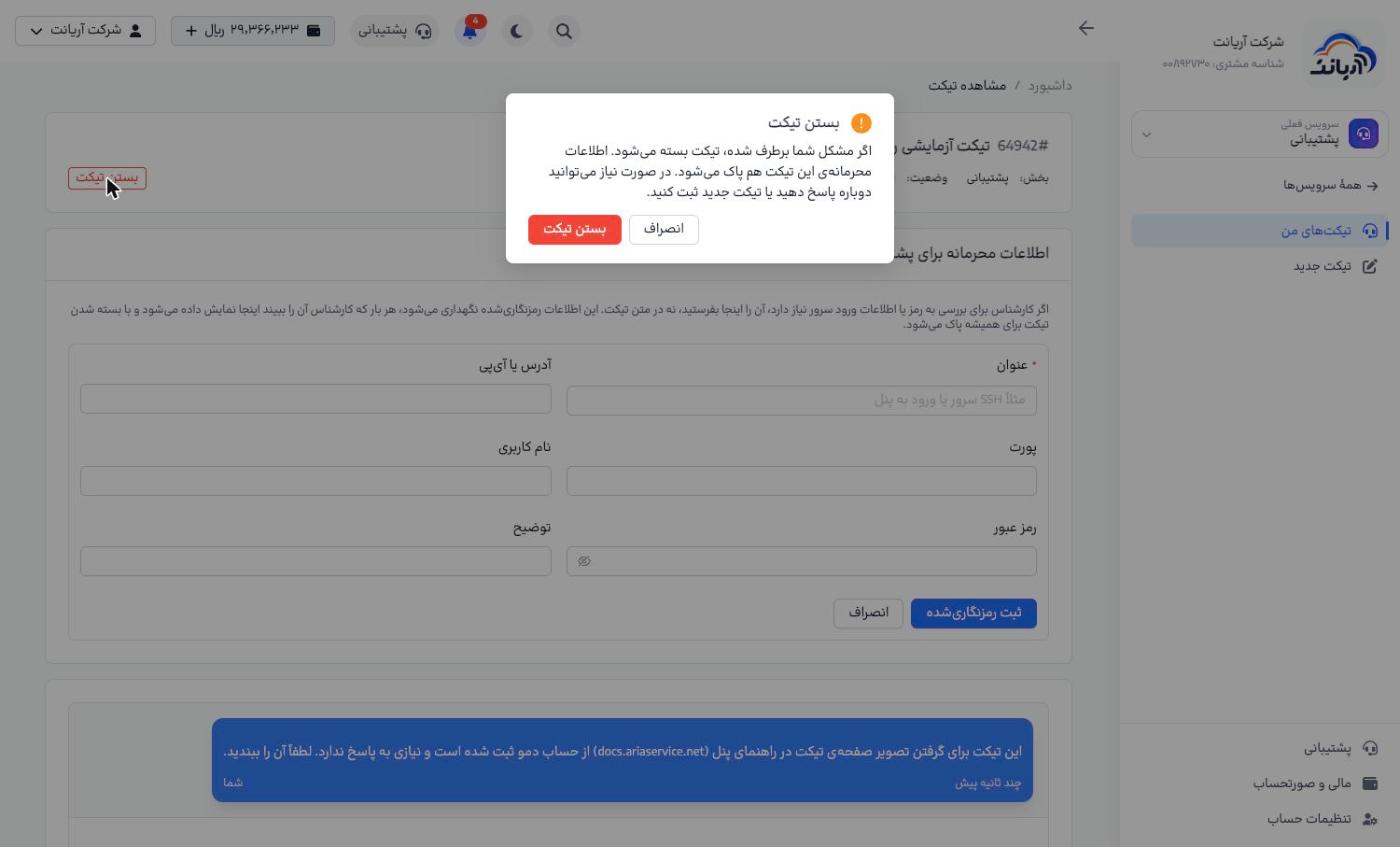
- You cannot send a new reply to a closed ticket; if the problem comes back, open a new ticket.
- When a ticket's status is Customer action required, support is waiting for you; nothing moves forward until you reply.