Direct connections and Database Settings
Direct database connections
Every project has its own Postgres endpoint:
<ref>.db.baas.arianet.app:5432
Connect psql, ORMs, migration tools, GUI clients or any other Postgres tool with the connection string from the Database Settings page. Connections go through the pooler in transaction mode, over TLS.
psql "postgres://postgres.<ref>:<password>@<ref>.db.baas.arianet.app:5432/postgres?sslmode=require"
- Copy the connection string from this page. The password is not shown here; take it with Reveal database password on API Keys and connection, or make a new one with Reset password.
- The user name is
postgres.<ref>, so tools that do not send the server name (SNI) in TLS still reach the right Project. - This connection has database owner privileges, like the SQL Editor; RLS does not restrict it. Never put the password in client-side code or a public repository.
- Transaction mode: each transaction may run on a different server connection, so session state does not survive between transactions:
SEToutside a transaction, named prepared statements,LISTEN/NOTIFYand advisory locks held across transactions. In ORMs that create prepared statements, turn on their pooler-compatible option (for examplepgbouncer=trueorprepareThreshold=0, depending on the tool). - Concurrent connections are limited by your Plan.
- If the Project was paused for inactivity, the first connection wakes it and asks the client to reconnect a few seconds later.
When a connection is refused: with SSL enforced only encrypted connections are accepted, and network restrictions admit only the allowed IPs/CIDRs. A refused connection gets a clear error message (for example a connection without SSL, from an address that is not allowed, or to a paused Project) that your tool displays.
Database Settings
The Database Settings page (Database menu) has these cards:
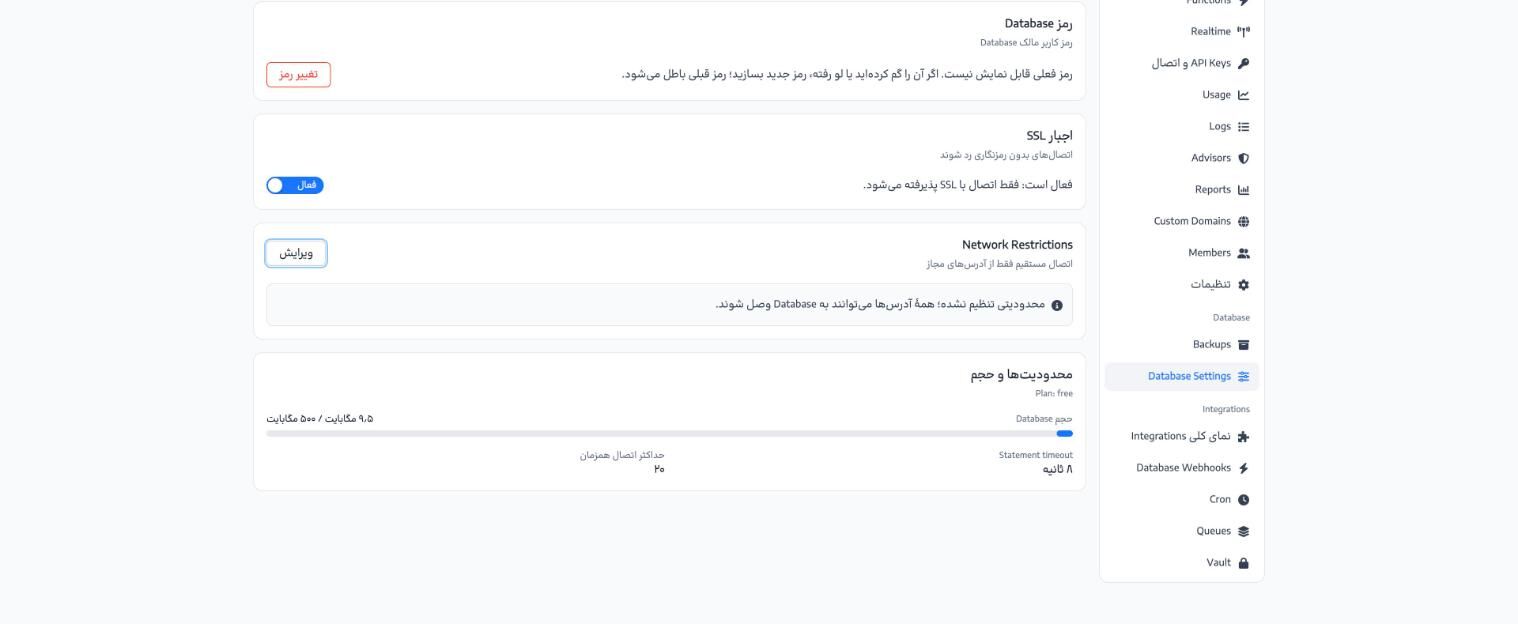
Database connection
The connection string, host, port, database name and user name for your tools and servers. If the external endpoint is not offered in your Region yet, this card says so.
Database password
The current password cannot be shown. If you lost it or it leaked, click Reset password: a new password is created, shown only once, and the old one stops working at once. Type the project's ref to confirm. Before you do this, know where the old password is used, because those connections will be cut. Needs the baas:keys:manage permission.
Enforce SSL
On by default: connections without SSL are refused. Turning it off accepts unencrypted connections too, and data can be read on the way; turn it off only temporarily, for an old tool without SSL.
Network restrictions
Accept direct connections only from allowed addresses. Edit is a two-step wizard: add CIDRs (use /32 for a single IPv4 address or /128 for IPv6), then review and save. Up to 50 IPv4 and IPv6 entries. An empty list means every address is allowed.
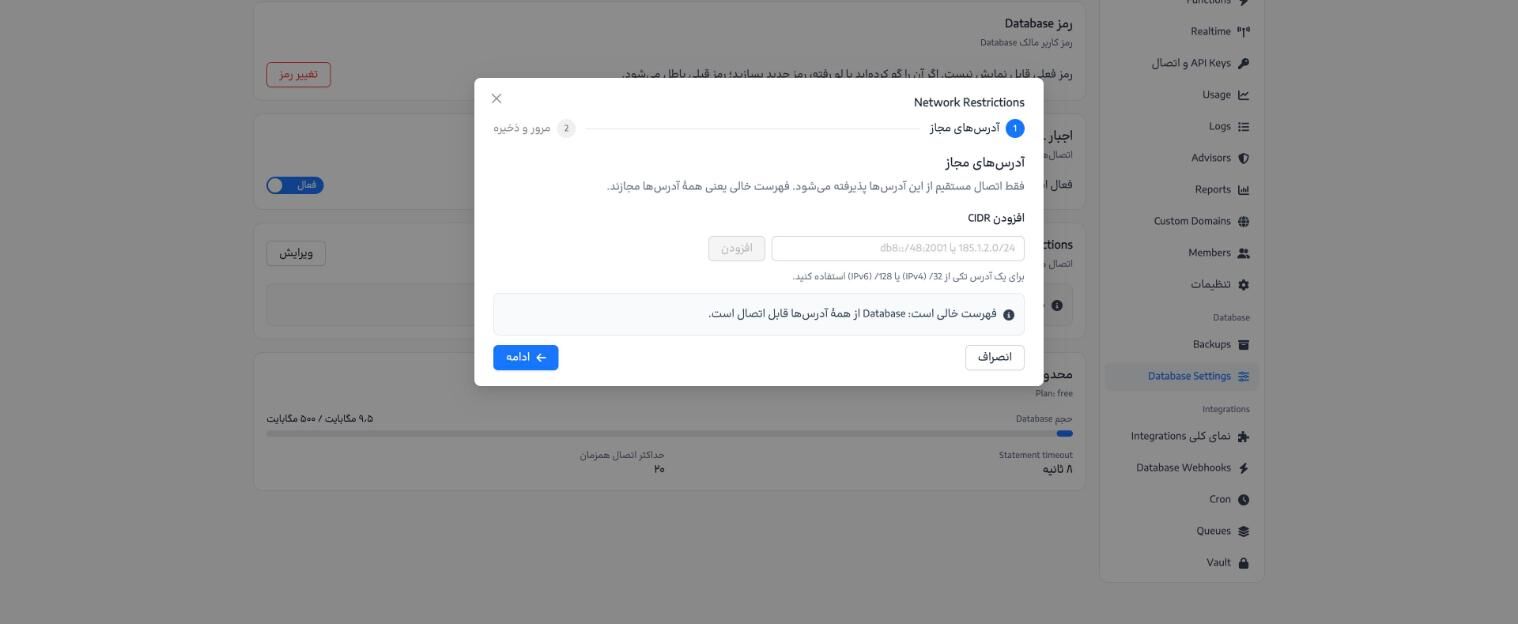
Network restrictions apply to direct database connections only; the REST API, Auth and Storage stay reachable from anywhere, and their access is decided by the keys and policies.
Limits and size
The database's current size against the Plan's limit, the statement timeout (the longest a statement may run) and the maximum number of concurrent connections. If the database became read-only because it is full, you see a warning here; delete data or upgrade the Plan.
Changing SSL enforcement and network restrictions needs the baas:projects:manage permission, and every change is recorded in the account's activity.