Storage: files
Storage keeps your app's files: profile pictures, documents, videos. Files live in Buckets; a Bucket is like a top-level folder, such as avatars or documents. Access to files is decided by the Bucket type (public or private) and by Storage Policies. From your app, use the Storage API.
Create a Bucket
New Bucket («Bucket جدید») is a four-step wizard:
- Bucket name («نام Bucket»): English letters and digits,
_,.and-. The name cannot be changed later. - Access («دسترسی»):
- Private — recommended («خصوصی (Private) — پیشنهادی»): only Users allowed by a Policy, and the Service Key, can see the files. For temporary sharing, create a Signed URL.
- Public («عمومی (Public)»): anyone with a file's address can download it without signing in. Only for public content such as site images; never put personal or confidential data in a public Bucket.
- Limits («محدودیتها», optional):
- Maximum size per file (MB): below the Plan's limit (50 MB per file on the Free Plan).
- Allowed file types: such as
image/pngorimage/*; empty means any type.
- Review and create («مرور و ساخت»).
The Bucket is created empty. You can change its access and limits later from the Bucket page.
Browse and upload files
Opening a Bucket shows its files and folders (name, size, last change). The current path is above the table; click a folder to enter it.
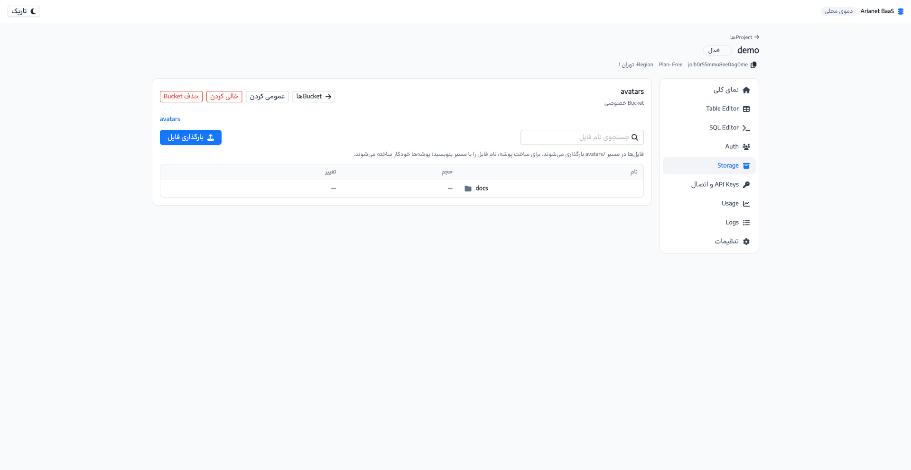
- Upload file («بارگذاری فایل»): choose files or drag and drop them onto the page. Files are uploaded to the current path with the progress of each, and a large upload resumes where it stopped after a dropped connection.
- Multi-select: tick several files and delete them together.
- Move and rename: write the new path; a
/moves the file to another folder. Moving to another Bucket is possible too, and that Bucket's file size and type limits apply to copies and moves as well. - Preview of images, PDFs and text (only the start of a large text file), and Copy URL (the public URL or a Signed URL).
- Folders are not created separately: write the file name with a path (such as
users/42/avatar.png) and the folders appear. - Search file name («جستجوی نام فایل») in the current path.
- Download: files are always downloaded as attachments.
- Signed URL: creates a temporary link with which anyone can download the file, without signing in, until it expires. Choose the validity («مدت اعتبار», 10 minutes, 1 hour, 1 day or 7 days) and click Create link («ساخت لینک»).
- Delete file: deleted for good; links you made for it stop working too.
Manage a Bucket
The buttons at the top of a Bucket page:
- Make public / Make private («عمومی کردن» / «خصوصی کردن»): when a Bucket becomes private, its public file links stop working and access is only through Policies and Signed URLs.
- Empty («خالی کردن»): every file in the Bucket is deleted for good; the Bucket itself stays.
- Delete Bucket («حذف Bucket»): only an empty Bucket can be deleted. Type the Bucket name to confirm.
Storage Policies
The Policies tab decides what anon and signed-in Users may do with files (RLS on storage.objects and storage.buckets). Without a Policy, no file is visible or writable through the API. The Service Key, the console and S3 keys bypass Policies, and a public Bucket needs no Policy for its public links.
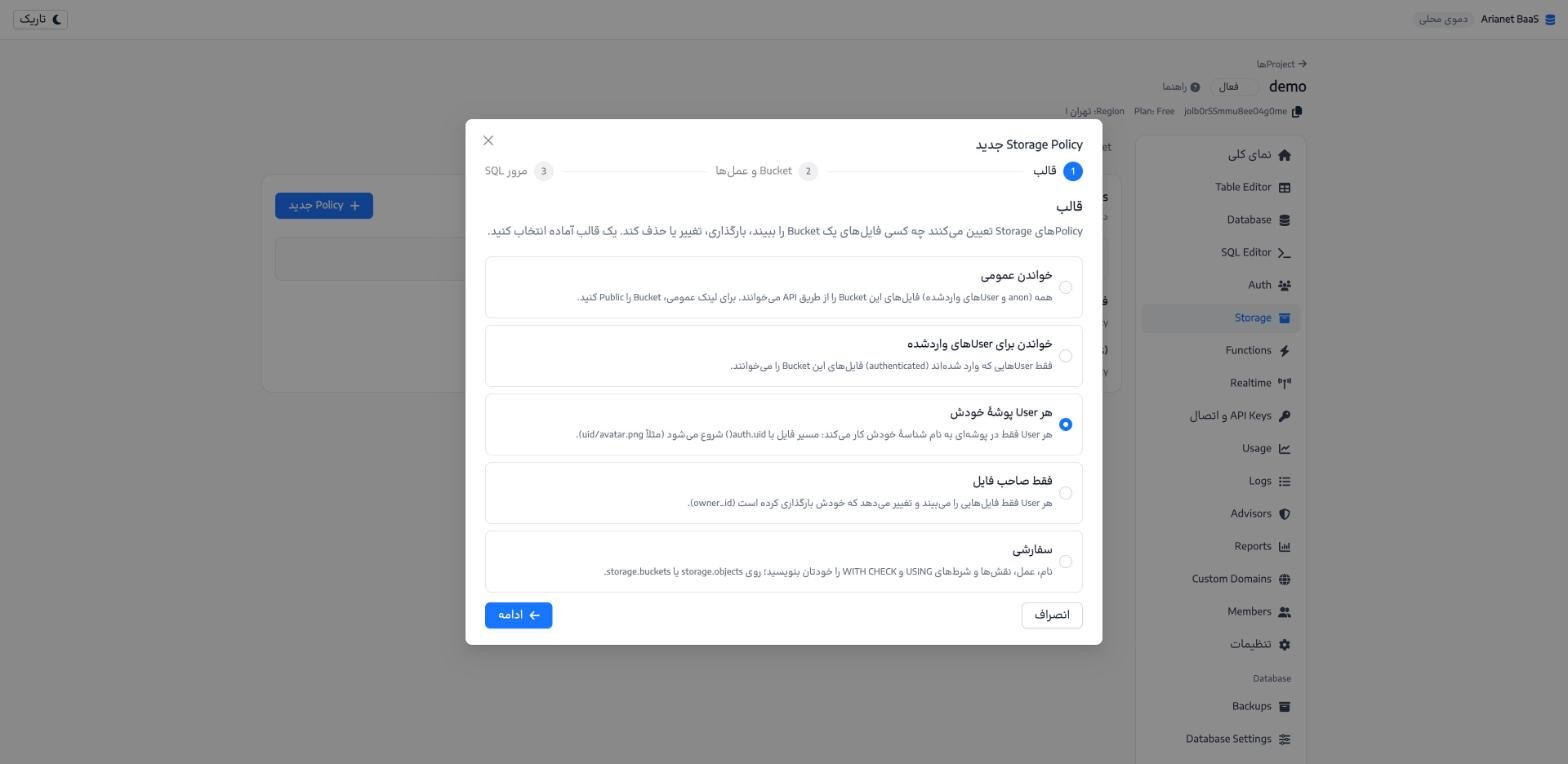
New Policy is a three-step wizard:
- Template:
- Public read: everyone (
anonand signed-in Users) reads this Bucket's files through the API. - Read for signed-in Users:
authenticatedonly. - Each User their own folder: the file path starts with
auth.uid()(such as<uid>/avatar.png) and each User works only in their own folder. - Owner only: each User sees and changes only the files they uploaded (
owner_id). - Custom: write the name, operation, roles and the
USINGandWITH CHECKconditions yourself. The helpersstorage.foldername(name),storage.filename(name)andstorage.extension(name)are available.
- Public read: everyone (
- Bucket and operations: which Bucket and which operations (read, upload, update, delete) the Policy covers. One Policy is created per operation.
- Review SQL: the SQL that will run.
S3 access
The Project's Buckets can also be reached with S3-compatible tools and libraries (such as aws-cli, rclone or any SDK). The S3 access tab shows the Endpoint (https://<ref>.baas.arianet.app/storage/v1/s3), the Region and the addressing style (path-style, forcePathStyle: true).
- New S3 key creates an Access Key ID and Secret Access Key. The secret is shown only once.
- S3 keys are at the Service Key's level and bypass Policies; keep them on your server only. You can revoke a key at any time.
- Each Bucket's file size and type limits and the Plan's limits apply to S3 requests too. The number of active keys is limited, and the Free Plan may not include S3 access; this tab says what your Plan has.
aws s3 ls s3://avatars --endpoint-url https://<ref>.baas.arianet.app/storage/v1/s3
Reaching files from your app
- Files in a public Bucket download without a key from
https://<ref>.baas.arianet.app/storage/v1/object/public/<bucket>/<path>. - For a private Bucket, and for uploading to any Bucket, the User must be allowed by a Policy on files. Until you write one, only the Service Key and the panel can reach the files. A sample "each User only their own folder" Policy is in Storage API: RLS on files.
Limits
- Total file size on the Free Plan is 1 GB, with at most 50 MB per file. Once the quota is full, new uploads are refused until you delete files or move to a bigger Plan.
- File downloads count towards the monthly Egress.
- To protect your users, HTML, SVG, XML and JavaScript files are sent as attachments (downloads), not as pages a browser runs. Serving them inline is only possible on paid Plans of an identity-verified account.
- Resumable (TUS) uploads for large files and image transformation on download are in the Storage API. Image transformation is not on the Free Plan.