Auth: your app's users
The Auth section shows the users who signed up in your app (not the members of your Arianet account) and decides how they sign in. Sign-up and sign-in happen from your app through the Auth API; this page is for viewing and managing Users by hand and for the settings.
Auth has these tabs: Users, Sign-in methods («روشهای ورود»), Providers, Policies (password rules, CAPTCHA and account), Email, URLs, Rate Limits, Sessions, MFA, Hooks and Audit Logs.
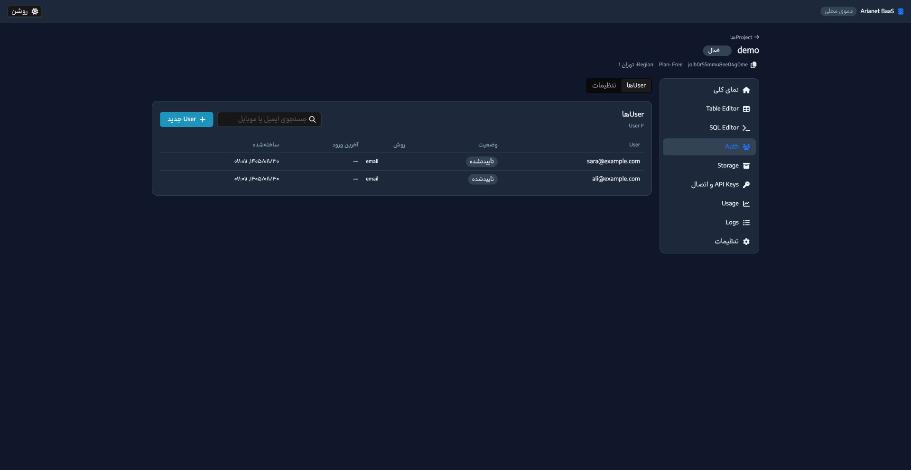
Users
The Users table shows for each User:
- User: email or phone (an anonymous User is marked "anonymous").
- Status («وضعیت»): confirmed, unconfirmed, anonymous or banned.
- Method («روش»): the ways the User signed in (such as
emailorphone). - Last sign-in and Created.
Find a User with Search email or phone («جستجوی ایمیل یا موبایل»). Clicking a User opens User details («مشخصات User») with the id (copyable), email, phone, timestamps and metadata, and these actions:
| Action | Effect |
|---|---|
| Confirm email manually («تأیید دستی ایمیل») | The email is marked confirmed without a confirmation link. |
| Send magic link («ارسال Magic link») | A one-time sign-in link is emailed to the User. |
| Send password recovery link («ارسال لینک بازیابی رمز») | A link to set a new password is sent; the current password works until the link is used. |
| Ban («مسدود کردن») | The User cannot sign in for the chosen period (24 hours, 7 days, 30 days or permanently); current sessions end when their token expires. |
| Unban («رفع مسدودی») | The User can sign in again. |
| End session / End all sessions («بستن نشست» / «بستن همهٔ نشستها») | The User's active sessions (device, time) are listed on their page; an ended session is signed out at its next refresh. |
| Delete factor («حذف Factor») | Removes one of the User's multi-factor (MFA) factors, for example when they lost their phone. |
| Delete User («حذف User») | The User and all their sessions are deleted for good. Rows that reference them with on delete cascade (such as the Table Editor's owner column) are deleted too. |
Create a User
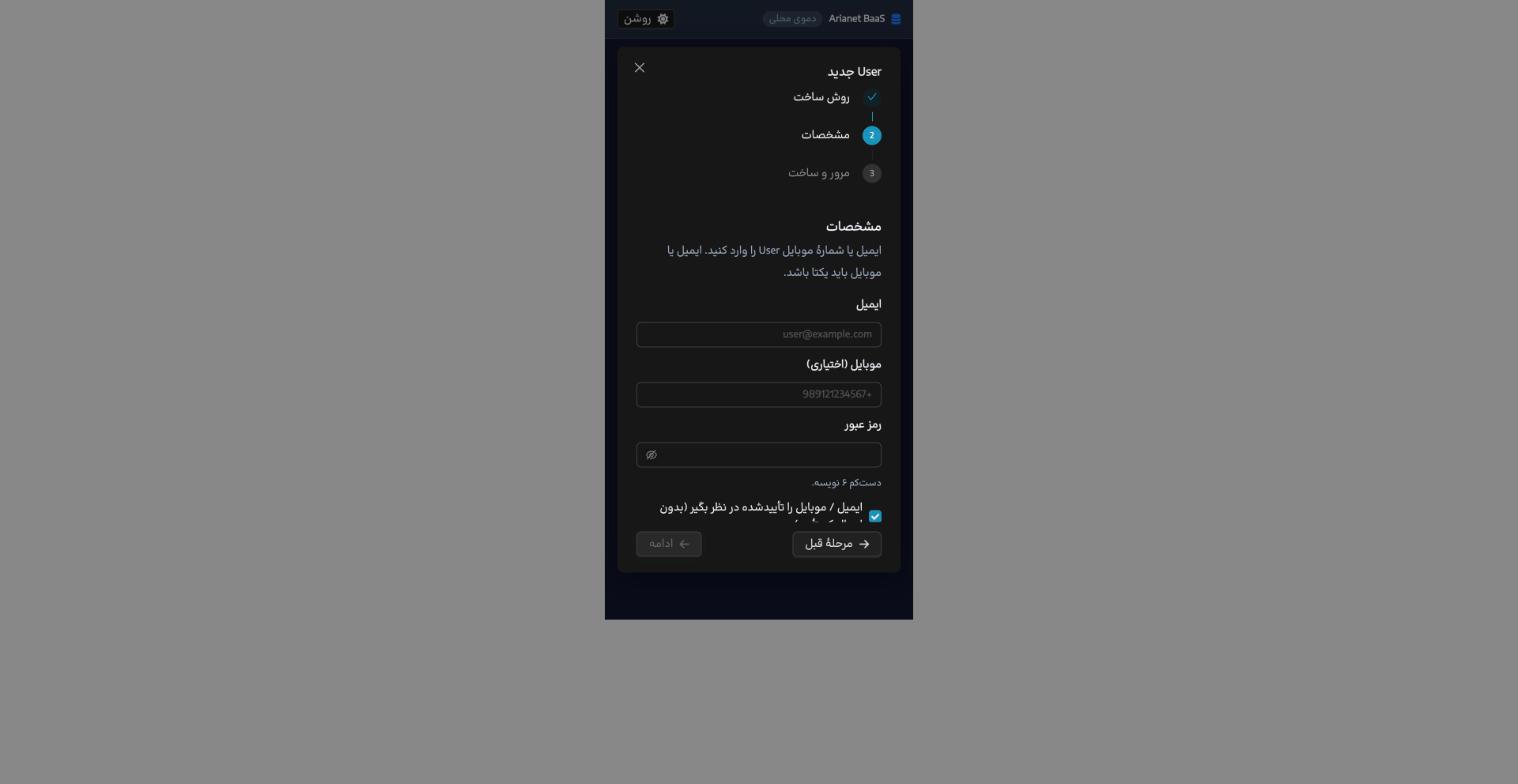
New User («User جدید») is a three-step wizard:
- How («روش ساخت»):
- Create with a password («ساخت با رمز عبور»): you set the password; good for test Users or moving users over.
- Invite by email («دعوت با ایمیل»): the User is created without a password and gets a sign-in link (magic link) by email.
- Details («مشخصات»): email, phone (optional, international form such as
+989121234567) and password (the minimum length from the settings, 6 by default). The email or phone must be unique. With "treat the email / phone as confirmed" the User can sign in without a confirmation code. - Review and create («مرور و ساخت»).
The User's password is never shown anywhere; give it to them yourself.
Sign-in methods and URLs
The Sign-in methods tab shows the current state (email sign-in, phone sign-in, anonymous sign-in, new sign-ups, email confirmation required, minimum password length, one-time code length and lifetime). Edit step by step («ویرایش گامبهگام») has these steps:
- Sign-in methods («روشهای ورود»)
- Email sign-up and sign-in (with a password or magic link)
- Phone sign-in (SMS code): only on a Plan with SMS. The Free Plan has no SMS OTP.
- Anonymous sign-in (a temporary User without an email)
- New sign-ups closed: only Users you create or invite can sign in.
- At least one sign-in method must stay on.
- Security («امنیت»)
- Email must be confirmed before sign-in (on by default). If you turn it off, anyone can sign up with any email, including someone else's.
- Phone must be confirmed before sign-in.
- Minimum password length (default 6), one-time code (OTP) length (6 to 10 digits, default 6) and code lifetime in seconds (default 300).
- URLs («آدرسها»)
- Site URL («آدرس برنامه»): where email links go when no allowed redirect is given.
- Allowed redirect URLs («آدرسهای مجاز بازگشت», one per line): confirmation, magic link and password recovery links only go back to these addresses and the Site URL.
*matches within one host label or path segment and**matches anything; mobile app URLs (such asmyapp://callback) must be listed exactly.
- Review changes («مرور تغییرات»): only what you changed is applied.
Changes reach every User within a few seconds; current sessions are not ended.
Providers: sign in with Google, GitHub and more
The Providers tab sets up sign-in with outside accounts: Google, GitHub, GitLab, Microsoft (Azure), Apple, Discord, Bitbucket, LinkedIn (OIDC), X (Twitter) and any OpenID Connect compatible provider (the Custom provider (OIDC) button).
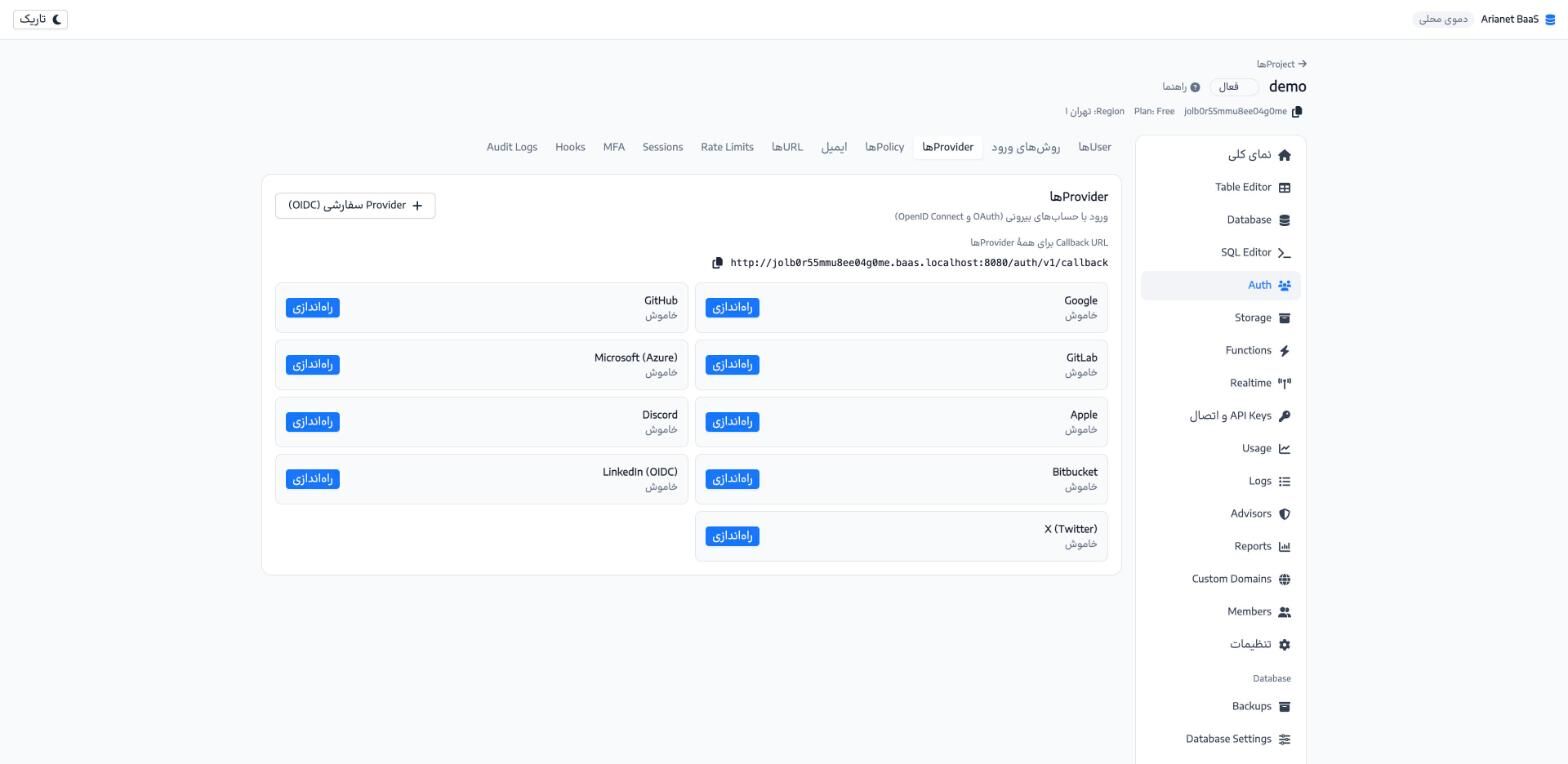
The Callback URL of every provider is at the top of the tab (https://<ref>.baas.arianet.app/auth/v1/callback) with a copy button. Set up («راهاندازی») for each provider is a three-step wizard:
- Create an OAuth App: create an OAuth App in the provider's console and register the Callback URL in it.
- Client ID and Secret: enter them. The Secret is stored encrypted and never shown again.
- Review: once confirmed, sign-in with this provider is live within a few seconds.
- A User who already has an account with the same confirmed email is linked to that account. A signed-in User can link their other accounts too (if "Manual identity linking" is on in the Policies tab).
- From your app:
client.auth.signInWithOAuth({ provider: 'github', options: { redirectTo } }). Both the PKCE and implicit flows are supported, and sign-in with an ID token (for example from Google's or Apple's native SDK in a mobile app) works too. - Turning a provider off closes new sign-ins with it, but its current Users and their sessions stay.
- Some providers may be hard to reach from servers in Iran; test sign-in before you publish.
Policies: passwords, CAPTCHA and account
- Password rules: minimum length, required characters (none; letters and digits; lowercase, uppercase and digits; or lowercase, uppercase, digits and symbols), whether changing the password from a session older than 24 hours needs a confirmation code, and leaked-password protection: a password found in the list of known leaked passwords is refused. The check runs fully offline inside Arianet and the password is never sent to any outside service. New rules apply to passwords created or changed from then on.
- CAPTCHA: with Cloudflare Turnstile or hCaptcha. The Site Key goes in your app's widget and the Secret stays on Arianet's server only. Your app sends the widget's token in the
captchaTokenoption of the sign-up, sign-in, one-time code and password recovery methods. - Account settings: confirm email changes from both addresses (current and new), manual identity linking (a signed-in User can link or unlink, say, GitHub), Access Token lifetime, app name and the language of messages (Persian with the English text below it, or English).
Email: templates and your own SMTP
- Emails (sign-up confirmation, invitation, magic link, password recovery, email change, reauthentication) are sent by default by Arianet on behalf of your app, in Persian and English. Sending from Arianet's server is rate-limited.
- Custom templates: write the text of each kind of email yourself (Go templates; variable values are escaped automatically) and see a preview with sample data before saving. Reset brings back the default message.
- Your own SMTP: send the emails from your own mail server: host, port (465 with TLS, others with mandatory STARTTLS), username and password, and sender (address and name). Send a test email before saving; wrong settings mean Users never get their confirmation email.
- SMS codes (SMS OTP) are only available on Plans with SMS; the Free Plan has none, unless you send the SMS yourself with the Send SMS hook. Existing Users can sign in with phone and password on every Plan.
URLs
The Site URL and allowed redirect URLs (as in Sign-in methods and URLs) can be edited in this tab too. * matches within one part of an address and ** matches anything; an origin without a path covers all its paths. Addresses not listed here are never redirect targets, so a sign-in link cannot send your Users to another site.
Rate Limits
Request limits for sign-up, sign-in, sending email and SMS, code verification and token refresh, per IP address. A value of 0 means the Plan's value; more than the Plan's limit is not possible. Past the limit the answer is 429 with a wait time.
Sessions
- Time-box: a session is ended after this time, however active it is.
- Inactivity: a session not refreshed for this long is ended.
- Single session per User: a new sign-in ends the User's other sessions.
0 means no limit; otherwise between 300 seconds and one year. Sessions past these limits end at their next refresh. Each User's sessions, and ending them, are on that User's page.
MFA (multi-factor authentication)
Users can enrol a second factor: TOTP (an authenticator app) or an SMS code (only on a Plan with SMS or with the Send SMS hook). In this tab you decide, per kind, whether Users can add it and whether sign-in with it is accepted, and the maximum number of factors per User.
After a factor is verified the User's session reaches level aal2, and its token says so; with RLS you can require aal2 for sensitive data:
create policy "sensitive needs mfa" on public.payouts as restrictive for all to authenticated
  using ((auth.jwt() ->> 'aal') = 'aal2');
From your app: client.auth.mfa.enroll, challenge and verify.
Hooks
An Auth hook hands one step of Auth to your code:
| Hook | What it does |
|---|---|
| Custom Access Token | Change or add claims before every token is issued (for example the user's role from your own Table) |
| Send Email | The code and link of Auth emails are given to you to send yourself; Arianet sends no email |
| Send SMS | The SMS code is given to you to send with your own SMS service (phone sign-in without the Plan's SMS) |
| MFA Verification Attempt | Every MFA verification attempt is reported to you and you can reject it (paid Plans only) |
| Password Verification Attempt | Every password sign-in attempt is reported to you; you can reject it and end the User's sessions (paid Plans only) |
It runs in one of two places:
- A function in this Project's Database: runs as
service_rolewith onejsonbargument and returnsjsonb; at most 3 seconds. No Secret needed. - An HTTPS endpoint: the request is signed with HMAC-SHA256. Headers:
webhook-id,webhook-timestampandwebhook-signature(v1,plus the base64 HMAC-SHA256 ofid.timestamp.body). The Secret is shown only once, when it is created.
A hook error stops that step (for example the sign-in).
Audit Logs
Auth events (sign-up, sign-in, sign-out, password change, factor enrolment, admin actions on a User, …) with time and User. Filters: event type, email, User ID and start time.
MAU limit
MAU is the number of distinct Users who signed in or refreshed their token in the current month (UTC). On the Free Plan, at the 50,000 MAU limit new sign-ups are refused until the month ends; existing Users keep signing in (Usage and limits).